

Ilya Trikoz has already shared a great story about his wife building SignDog with Claude Code without writing a line of code.
Here, we'll figure out how to get into vibe coding: which tools fit which tasks, and how to build a small first project together.
 The most important prompt for getting into vibe coding (just kidding).
A quick detour: what is vibe coding?
Andrej Karpathy coined vibe coding in a post on February 2, 2025. He jokingly described programming where you “forget that the code even exists”: tell a model what you want, run the result, and react to what you see. Vibe is the feeling you get from the working thing. You guide the project while AI writes the code. The term stuck and is now used more broadly than Karpathy's original joke.
In practice, you describe what a program should do, AI writes the code, and you open the result and ask it to fix what doesn't match your idea. You don't need to know a programming language to build and run a first small project.
So who counts as a vibe coder? If you ask a model to write a program, run it, and direct changes in plain language, you're vibe coding. A professional developer can work this way too. If the model only explained syntax and you wrote the program yourself, that's closer to ordinary development with an AI assistant.
What do you need to start? An idea, a browser, and access to a chat or builder from the list below.
Let's all become vibe coders right now. Open DeepSeek and paste this prompt. Change the details if you like:
Create a Mario-style browser game starring Trump. He collects coins shaped like bitcoins, and his enemies are Biden clones. Your result may look different. Click Run in the chatbot interface to play.
That's it. A game like this is the Hello, World! of vibe coding. It's only a first step, but it shows the idea: we described a result in words and got a working program. Next, let's build a tool we can actually use.
What can you build with vibe coding?
Projects often start with a small annoyance that doesn't justify hiring a developer or learning a large piece of software. And there's plenty more to make than timers and calculators:
- For yourself: a personal website, notes or a task manager, a workout app, a searchable wardrobe catalog, a trip planner, or a habit tracker.
- For work and hobbies: a simple company website, an inbox processor, a scorekeeper for amateur games, a class schedule, a service quote calculator, or a dashboard for a small team.
- To show someone an idea: a landing page, a quiz, an interactive prototype, or a browser game. You can share a result even before there's a full service behind it.
For inspiration, browse projects shared on r/vibecoding or game, website, and art templates in GPTunneL CodeBlocks.
The pattern is easy to recognize: “This task is awkward with the tools I have. I'll make one that fits me.”
And take another look at our SignDog story. It started with handling PDFs. Payments, a stamp editor, and other features came later.
Which tool fits your project?
Coding tools work differently. With some, you open a website and type one sentence. With others, you install an editor, run a project, and keep track of changed files. We'll group them by how many technical decisions you need to make yourself. We'll also look at adding AI inside an app, which is a separate task.
Beginner: open a browser and start
-
GPTunneL chat with GromGPT and DeepSeek
Good for working out the rules, getting code for a simple page or game, and discussing changes. It feels like a normal chat. If the model returns code without a preview, save it as an HTML file and open it yourself. -
GPTunneL CodeBlocks
Builds an interactive HTML page and previews it in the browser. Ask for a timer, calculator, landing page, or mini-game, try the buttons, request changes in words, and download the result as one file. You can see the page without saving an HTML file first. -
Google AI Studio Build mode
Useful when a single page isn't enough and you want a web app with a live preview. You can begin with a plain description. As the project grows, you'll encounter files, server logic, and publishing settings. -
Bolt
Builds websites and apps with multiple screens in the browser. Handy for a prototype you want to click through right away. With more data and integrations, you'll need to look more closely at what the agent created. -
Lovable
Focuses on web apps with a ready-made interface, database, and user sign-in. You can describe the first version in words. Before publishing, check access rules, data storage, and what different users can see. -
Replit Agent
Puts the agent, project files, and running app in one place. You don't have to set up a local environment to move from a simple prototype to several files. You'll still need to reproduce and describe bugs in the running app.
Intermediate: let an agent work with project files
You can begin in an empty folder or continue an existing project. The agent creates and changes files, but you decide what it may do and check the result.
-
Cursor Agent
Keeps the chat, files, and code changes together. Install Cursor, sign in, and open your project folder. Ask the agent to build a starting version, then inspect changes in the editor. You'll need to learn how to run the project. -
Cline
An editor extension, for example for VS Code, where you choose a model provider. Start with an editor, the extension, and model access through Cline or your provider's key. Watch costs and permissions to run commands. -
Claude Code
Works on project-level tasks such as creating an app, adding a feature, or investigating a bug. You can use a terminal, an editor extension, or the Claude app. Choose one route and set up access. The agent can run commands, so check what it installs and changes. -
Codex
OpenAI's coding agent can build a project and inspect changes to existing code. It has an editor extension and a CLI. For the CLI, install it, open a project folder, and sign in with ChatGPT or another supported method. You can also ask it to review completed changes.
Advanced: add AI to the app itself
So far AI has helped us write software. Your software can also call a model. For example, a user could describe a training goal and receive a suggested workout. That requires an API, a way for code to send requests to the model. A complex app with no AI feature doesn't need a model API.
- GPTunneL API
Lets you add text generation, document processing, and other AI features. You'll need server logic, an API key, and error handling. Decide what user data to send and how to limit request costs. A timer can count seconds and switch screens without calling AI at all.
These levels describe the learning curve, not who is allowed to use a tool. An experienced developer might make a useful page in CodeBlocks; a beginner might build in Replit. Pick a tool that lets you test your idea.
A short route from idea to link
- Pick a tool. The list above covers single pages, multi-screen apps, and projects already stored in a code folder.
- Describe the result. For example: “Build a class booking site where a visitor chooses a time and receives a confirmation.” Let AI work out the implementation.
- Run the first version. Treat it as a draft. Check that it works before debating button colors.
- Add one feature at a time. Repeat your main user journey after each change.
- Review before sharing. Try it as a visitor. If it has accounts or data, test access rules.
- Publish if you want others to use it. The steps depend on whether you have one HTML file, a project in an online builder, or a folder of code.
Your first project: an interval timer
Let's build a workout timer in GPTunneL chat with GromGPT. Open the model and paste this request:
Create one interactive HTML page in English: an interval timer for workouts.

The user sets work and rest durations in seconds (whole numbers from 1 to 3600) and a number of rounds (1 to 50). Clicking "Start" begins work in the first round. Rest follows work, then the next round begins. After the final work interval, show "Workout complete" and do not start an extra rest interval.

Show the remaining seconds, current phase, and round number clearly. Add "Start", "Pause / Resume", and "Reset" buttons. While paused, the countdown must stop. "Reset" returns to the settings and round one. Do not start with empty fields, zero, or numbers outside the allowed ranges; show a clear error message instead.

Make the interface neat and easy to use on a phone. No sign-in, server, external libraries, or network requests. The whole result must work as one HTML page. Do not allow settings to change in the middle of a running round.

Return the result as a complete, ready-to-use HTML page.
It's a long prompt on purpose. The model knows when the workout ends, how pause should behave, and why zero seconds is invalid. You could start with “make a timer,” but you'd have to explain those details later.
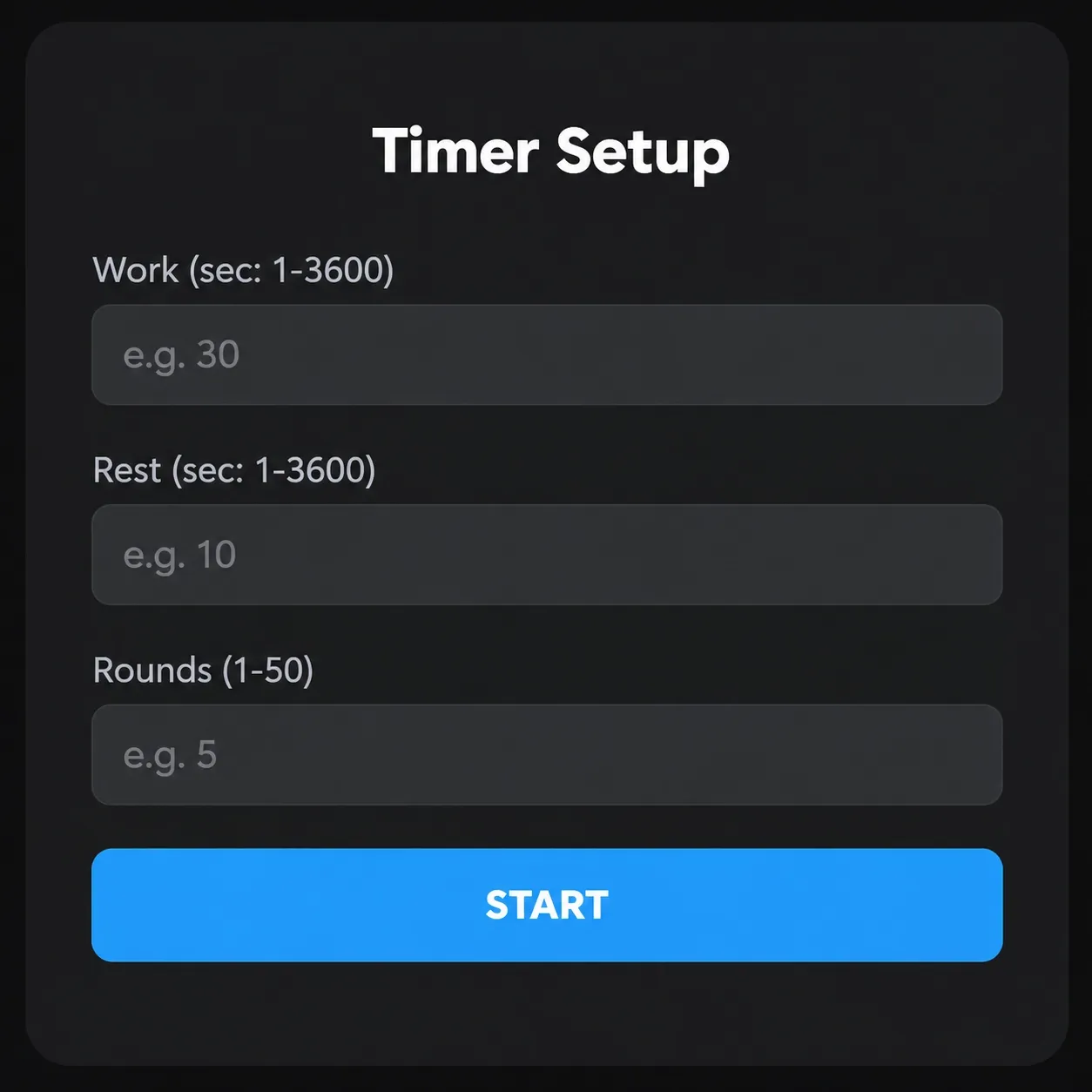 The first screen of the timer built from this prompt.
Run it on a computer or phone
In the chat. Once GromGPT returns the HTML, click “Preview” next to “Code” above the answer. The page runs in the interface: press Start and try the timer.
On a computer. To open it outside the chat, copy just the HTML code into a plain-text editor and save it in a folder as index.html. On Windows, choose “All files” as the file type so you don't end up with index.html.txt. Double-click the file to open it in a browser.
On a phone. After testing, we'll publish the folder containing index.html and open the resulting link in a mobile browser. The publishing steps are below.
Check the buttons first. The background color can wait. After a change, save the file again and refresh the browser tab.
Test the result and ask for fixes
For a quick test, use 5 seconds of work, 3 seconds of rest, and 2 rounds. You can watch the whole sequence:
- First work interval.
- Rest.
- Second work interval.
- “Workout complete.”
An extra rest after the second work interval is a bug. Pause the timer for a couple of seconds, then resume; that paused time should not disappear from the countdown. Reset should take you back to settings and round one.
Now try bad settings: leave a field blank, enter zero, a negative number, or something above the limit. You should get a clear error message instead of a broken timer.
If the page is blank or a button does nothing, open the browser console. In desktop Chrome, press Ctrl+Shift+J (on a Mac, ⌘+Option+J). Copy any error message and tell the model what you did: “I click Start, but the countdown does not begin. The console says … Fix this and keep the other features.” The Chrome Console reveals errors the page itself may not show.
“Fix everything” gives the model little to work with. Describe one case:
With 5 seconds of work, 3 seconds of rest, and 2 rounds, an extra rest begins after the second work interval. It should show "Workout complete" immediately. Fix only the phase transition. Keep the buttons and styling. Then check this scenario and a one-round workout.This names the settings, expected behavior, and bug. After the fix, repeat the 5/3/2 test and a one-round test. A change to phase transitions can fix one case and break another.
Add a feature
Once the basic version works, try one improvement. One at a time makes it easier to see what a change broke:
Add a "Skip rest" button. Show it only during rest. Clicking it should start the next work round immediately. Preserve pause, reset, and ending the workout without an extra rest.Test two rounds again, then one round. If both still work, carry on.
That's the whole loop: prompt → run → feedback → run again. We didn't have to read the timer's code, but we did have to explain the rules, spot a bug, and check the fix. The same loop works for a small game and a larger app.
Before publishing: a quick check
When other people use your project, mistakes matter more. Before sending out a link:
- Walk through the main actions as a visitor. Test an empty form and a complete booking flow.
- If there are accounts, test as two different users. One should not see the other's records or settings.
- If you use an API, don't put secret keys in HTML or paste them into a model chat. Browser code is visible to visitors; secrets belong on the server.
- If the app uses a paid API or hosting, check limits and costs before inviting everyone in.
For a service with payments or personal data, that's only the beginning. Have someone who can inspect code and access rules review it before a public launch.
How to publish your project
A preview in a chat or editor is visible to you. Other people need a published address. The steps depend on where the app lives:
- One HTML file from a chat or CodeBlocks. For our timer, open Netlify Drop and drag in the folder containing
index.html. You'll get a link you can open on a phone or share. To update the same site, drop the changed folder into the upload area on its Deploys tab. - A project in a browser-based builder. Google AI Studio Build, Bolt, Lovable, and Replit can publish from inside the service. Find Publish, check who can access the page, and follow its steps. Some options may require billing details.
- A project in Cursor, Cline, Claude Code, or Codex. These tools work on files; a separate host gives your app a public address. For a web project, you can store the code in a GitHub repository and connect it to Vercel or Netlify. Check whether the host supports your project and configure its build and start commands. Keep secret keys in the server environment settings, away from code sent to the browser.
If you don't know which settings your project needs, ask the agent to inspect the files:
Study this project and write a beginner-friendly publishing guide. Suggest a suitable hosting method, build and start commands, required environment variables, and connected services. Explain each step. For secret keys, give only the variable names and where to set them, never their values. List anything you need me to clarify.Environment variables are settings supplied to the app when it builds or runs, such as a database address or server-side keys. If a deployment fails, copy the error from the host's build log and send it to the agent with a description of your last change.
After publishing, open the link in a private browser window and on another device. That shows what visitors can actually see.
Common mistakes
- The request says “make something useful.” Name the user's action and the result: what they enter, click, and see.
- Several features go into one request. When something breaks, the cause is hard to find. Add one feature at a time and save a working copy before a large change.
- A bug report says only “it doesn't work.” Give the model your settings, action, expected result, actual result, and any browser error.
- A complex service is treated like one HTML file. Shared data, accounts, and payments need server-side code. Choose an appropriate tool above and check access rules before publishing.
When one page is no longer enough
Shared data needs somewhere to live. A workout history available on multiple devices calls for a database. User accounts need rules for which records each person can see and change. Write down those rules before asking AI to add sign-in.
You'll also need a way back to a working version. For one HTML file, save a copy before edits. For a multi-file project, Git stores the history of code changes. Save tested versions so you can recover from a bad improvement. Back up the database separately: code history doesn't save users' records.
If you can't explain who can access data or how to recover after a failure, bring in a developer. Give them a project description, run instructions, and known problems so they can see what's ready and what needs attention.
Frequently asked questions
Do I need to know how to code to start vibe coding?
Not for a first page or game. You need to describe what you want and test the result. As the project gains data and users, it becomes more useful to understand what AI changed and how to check it.
What might I pay for while building and after publishing?
Check your tool's terms first: it may charge a subscription, credits, or per API request. After publishing, hosting, a database, a domain, and outside services can add costs. A subscription for the coding assistant doesn't necessarily include those.
If AI only wrote the code, the finished program doesn't have to call a model every time it runs. If you add an AI API to the app, visitor requests may use money or quotas too. Estimate building costs and running costs separately.
What if AI fixes one bug and creates another?
Save the current files and return to the last working version. Pick one bug, describe how to reproduce it, and ask the model to explain a likely cause before changing anything. Make one change, then repeat your checks. A list of working scenarios helps you notice when a fix breaks a neighboring feature.
If you start a new chat, pass along the latest code, how to run it, and the error. A screenshot alone may not give the model enough information.
Can I show the result to everyone on the internet?
Yes. Use the publishing route above and set public access. Check the link while signed out: visitors should reach the app without access to your editor. A public website can still have private user accounts; the data inside them must remain visible only to its owners.
A little while ago, we had an idea. Now there's a working timer in the browser. Next you can change the design, add sounds, or save settings. Start with something you can test today. If it grows into a real service, the SignDog story shows the new decisions you'll face along the way.