
Neural networks that turn text into images are opening up new possibilities for creativity and work. One of the most advanced of these models is GPT-4o from OpenAI, which was recently updated. The model can now create top-quality images, including well-rendered text, people, landscapes, and much more.
In this article we'll explain how to use this feature and share practical tips for getting the best results on GPTunneL.
What is image generation in GPT-4o?
GPT-4o is a multimodal model that can process and create not just text but images too. In essence, when you ask it to create a picture, GPT-4o taps into its built-in capabilities to generate unique images from your text descriptions.
Image generation can be useful for all sorts of tasks:
- Creating illustrations for articles, blog posts, or social media.
- Developing design concepts, presentation slides, or creative projects.
- Editing or modifying existing images.
- Visualizing ideas that are hard to describe in words.
- Producing images with accurate text rendering, for example for infographics or mockups.
On the GPTunneL platform, GPT-4o offers several generation quality levels: Low, Medium, and High. They differ not just in price but in other important parameters too.
- Low: The fastest and cheapest option. Good for quick drafts, concepts, or images that don't need high detail. Image quality is lower, with less attention to fine detail and consistency.
- Medium: The best balance of speed, cost, and quality. Delivers better detail and consistency than Low, but is faster and cheaper than High. Recommended for most tasks. Supports transparent backgrounds.
- High: Maximum generation quality. Images are the most detailed, with the best consistency and attention to fine detail. Generation takes longer and costs more, since it uses significantly more tokens. Best suited for final images that require high sharpness and precision. Supports transparent backgrounds.
How to start generating an image (including Ghibli style!)
Creating an image with GPT-4o is fairly intuitive. You need to find this model in Creative.Lab — our lab for working with neural networks for image and video generation. Then simply enter a text description of the image you want in the prompt field, just as you would in a regular text conversation. The model automatically recognizes the intent to create visual content and offers to generate the picture.
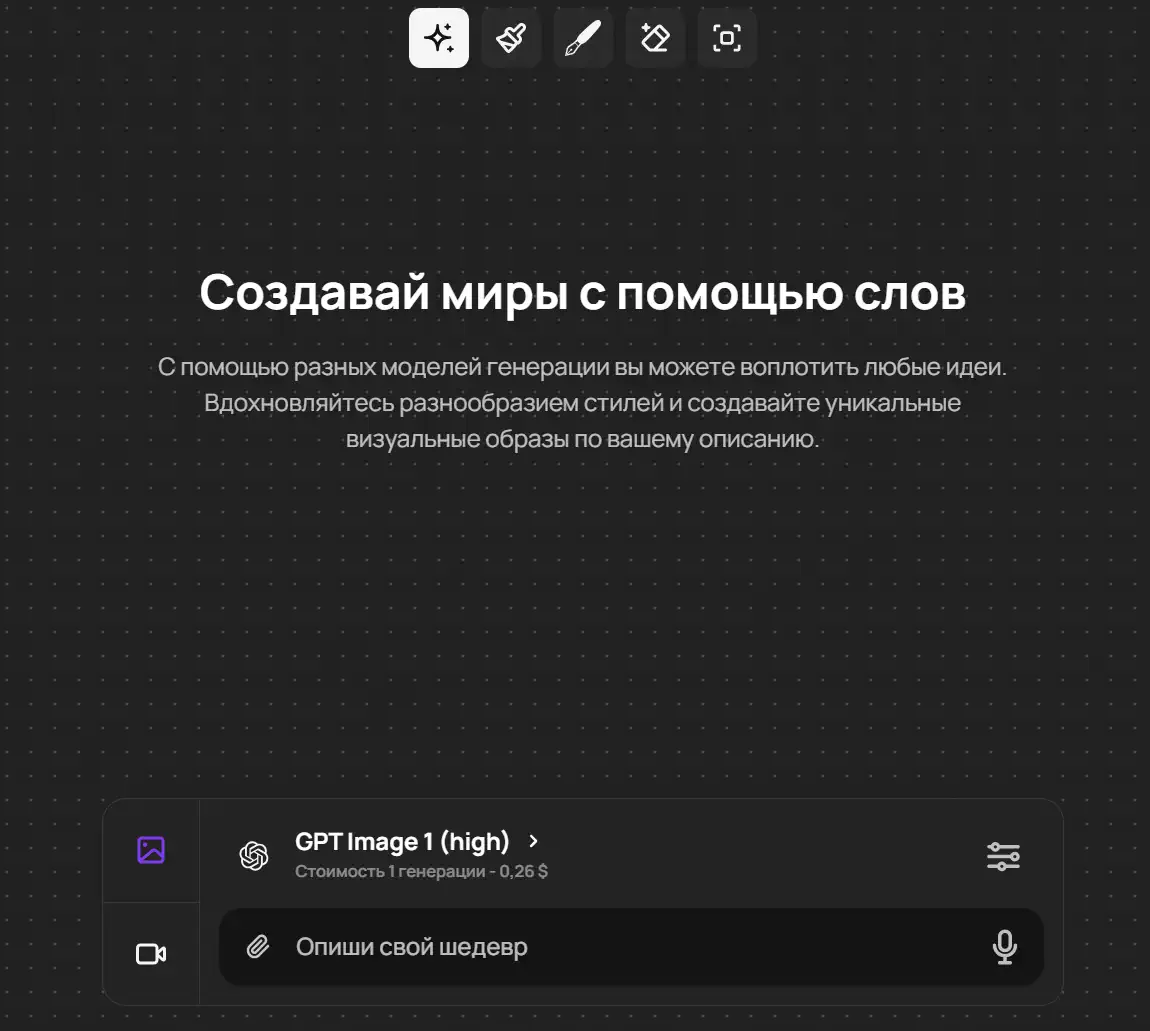
The Creative.Lab interface on GPTunneL
The general process looks like this:
- Choose one of the three versions of the GPT-4o Image Generation model in Creative.Lab: High, Medium, or Low.
- Enter a detailed text description of the image you want to get.
- Send the request.
- The model generates an image based on your description.
How to write effective text prompts
The quality and accuracy of the generated image depend directly on how well your prompt is written. GPT-4o follows instructions better than previous models and can handle 10-20 different objects in a single request.
Here are a few key tips for writing good prompts, tested with GPT-4o Image Generation (High):
Be as specific as possible
- The more precisely you describe your idea, the better the model will understand it. Specify not just the main objects but their details, surroundings, and background too.
- Tip: Instead of "a cat sitting on a windowsill," try "A fluffy orange cat sits on the wooden windowsill of an old house, looking out the window on a rainy day, in Studio Ghibli style."
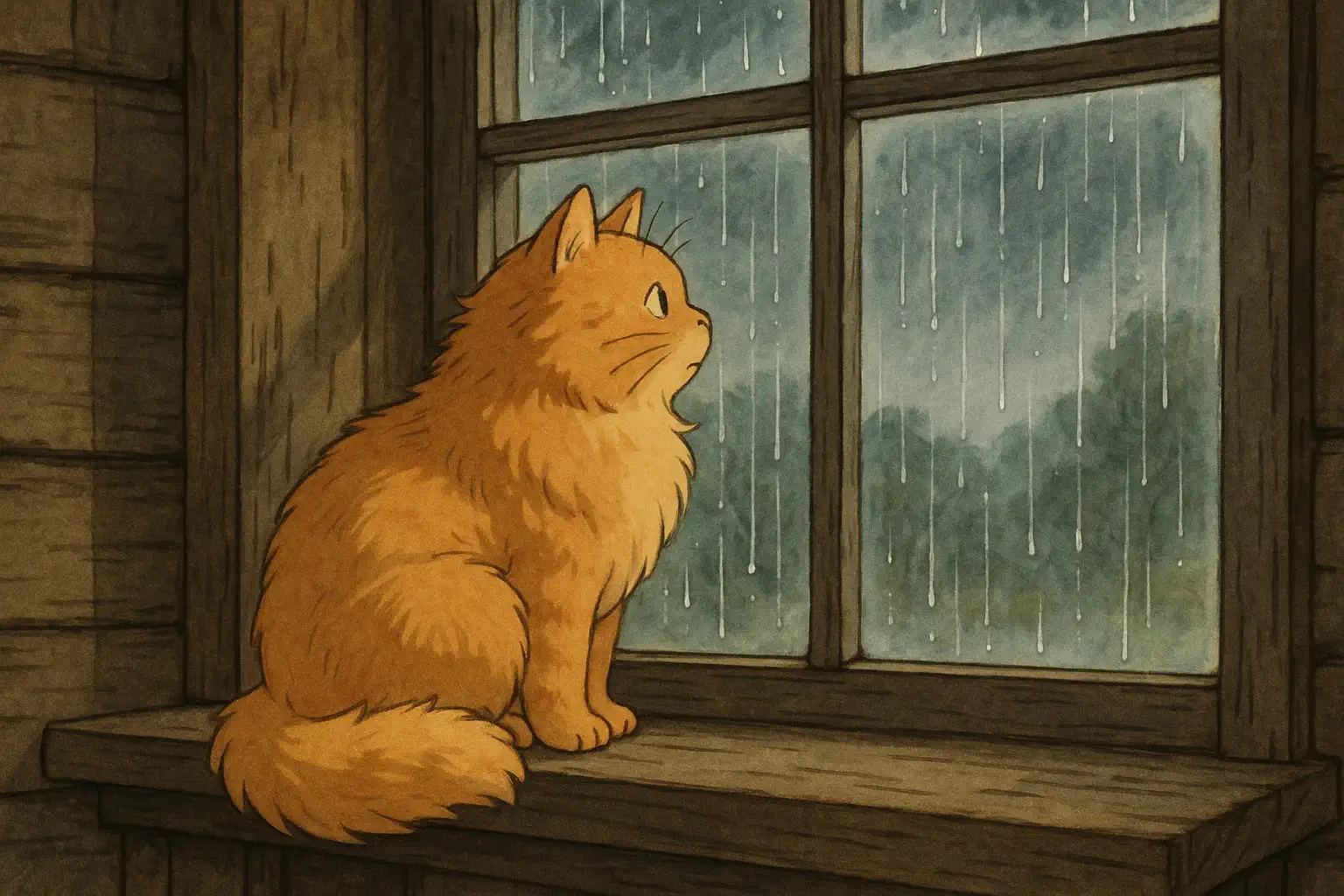
Prompt: ghibli A fluffy orange cat sits on the wooden windowsill of an old house, looking out the window on a rainy day --size 1536x1024. Published in the GPTunneL gallery.
Describe the style and mood
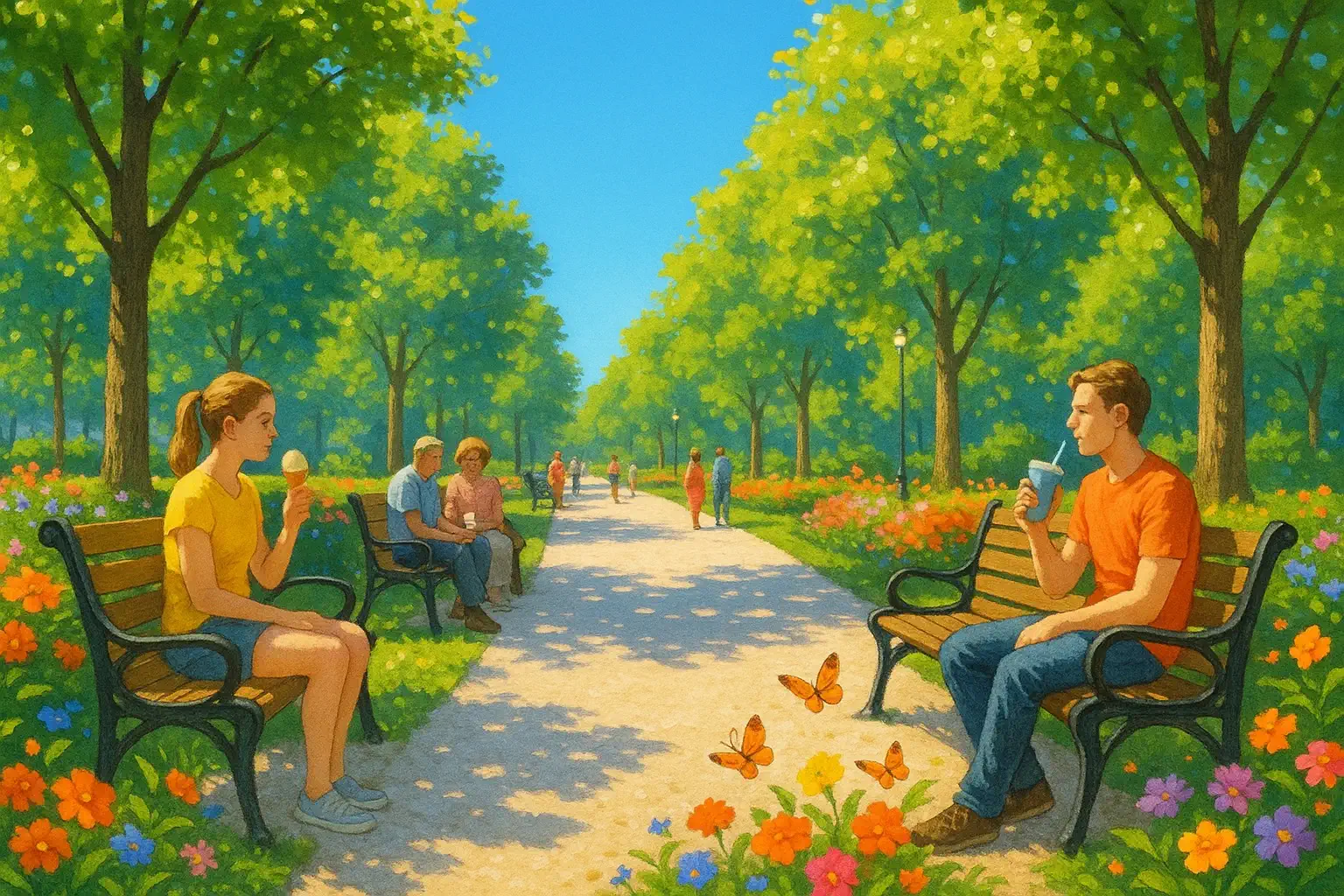
- Specify what style the image should be in (photorealism, illustration, watercolor, digital painting, etc.) and what mood it should convey (calm, dramatic, cheerful).
- Tip: Add phrases like "in impressionist style," "bright and sunny," "a mysterious night scene."
Specify composition and angle
- Think about how the objects are arranged in the frame. Specify if you need a close-up, a wide shot, or a particular perspective.
- Tip: Use phrases like "close-up of a face," "top-down view," "wide shot."

Prompt: Close-up of a cup of coffee on a wooden table: steam rising, an open book lying nearby. The cup should have text in a beautiful but clearly legible font: "GPTunneL copywriter's coffee cup." Add small details — shadows from the cup, faint cracks on the book cover, and a few coffee beans on the table. --size 1536x1024. Published in the GPTunneL gallery.
Work with color and lighting
- Describe the color palette you want and the type of lighting. This strongly affects the final image.
- Tip: "Warm sunset light," "cool blue tones," "high-contrast lighting."
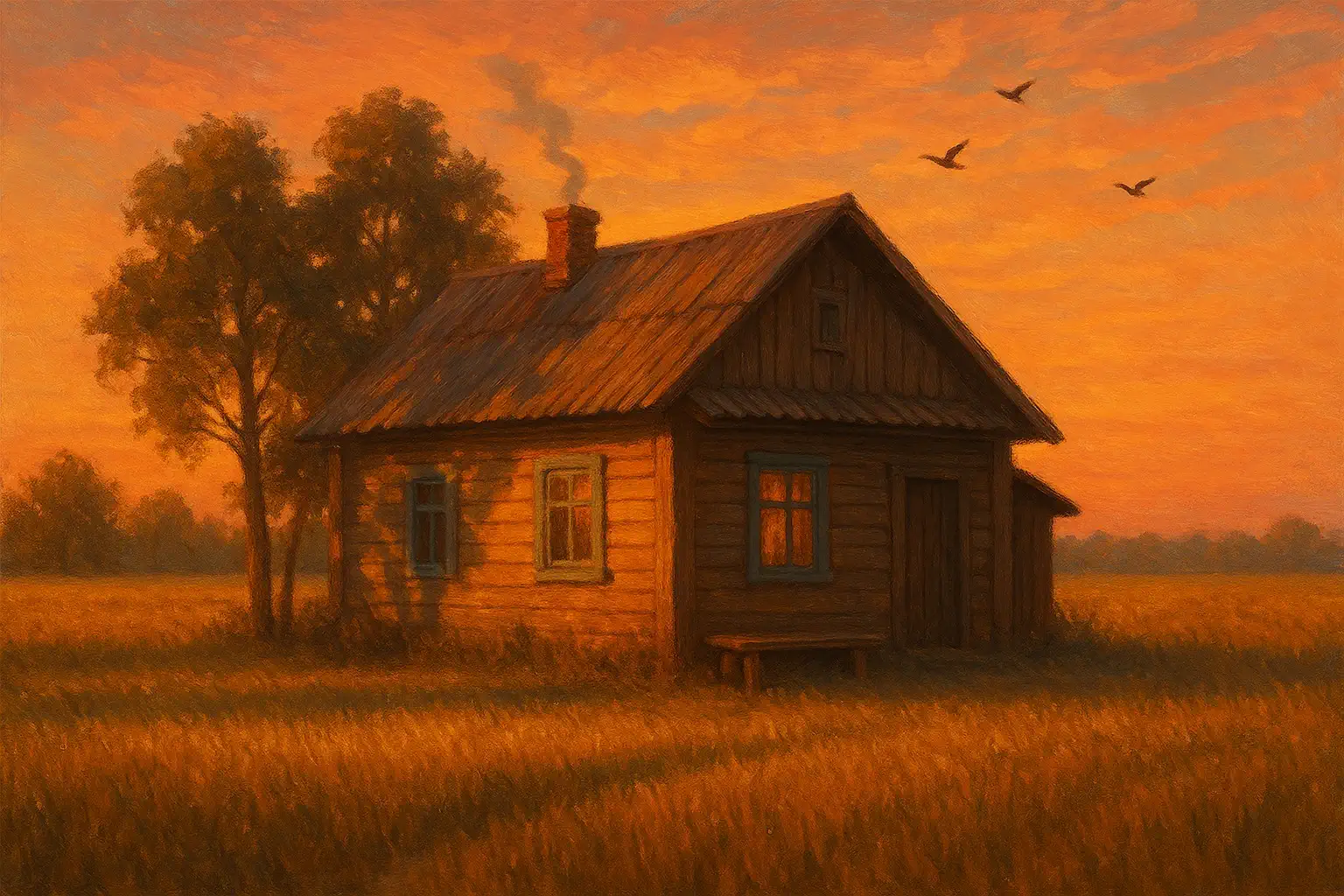
Prompt: A country house against a field in warm sunset light: long shadows from the trees, soft golden glow on the walls, the sky tinted in orange-pink hues. Add small details — smoke from the chimney, an old bench under the window, and a few birds flying at sunset. --size 1536x1024. Published in the GPTunneL gallery.
Add actions
- If the objects should be doing something, describe it clearly.
- Tip: "A person running in the rain," "a bird taking off from a branch."
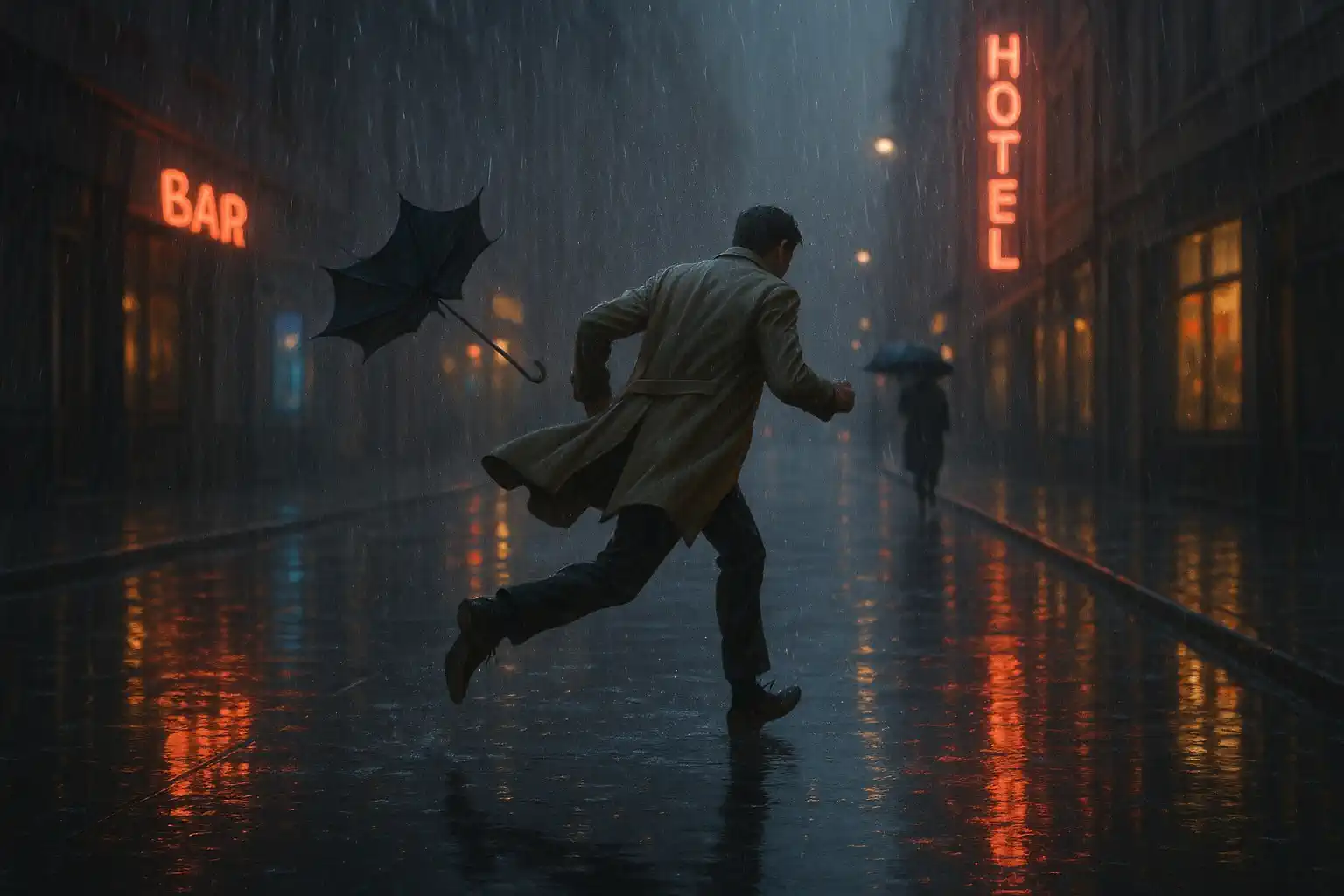
Prompt: A city street on a rainy evening: a person in a light coat running through pouring rain, water droplets glistening on the pavement. Add small details — an umbrella turned inside out by a gust of wind, and reflections of neon signs on the wet asphalt. --size 1536x1024. Published in the GPTunneL gallery.
Be precise for images with text
- GPT-4o handles adding text well, but it's important to clearly specify the text itself, where you want it placed, and, if possible, the style.
- Tip: "Draw a sign that reads 'Cozy Café,' placed above the door. Vintage font, sign glowing with a warm light."
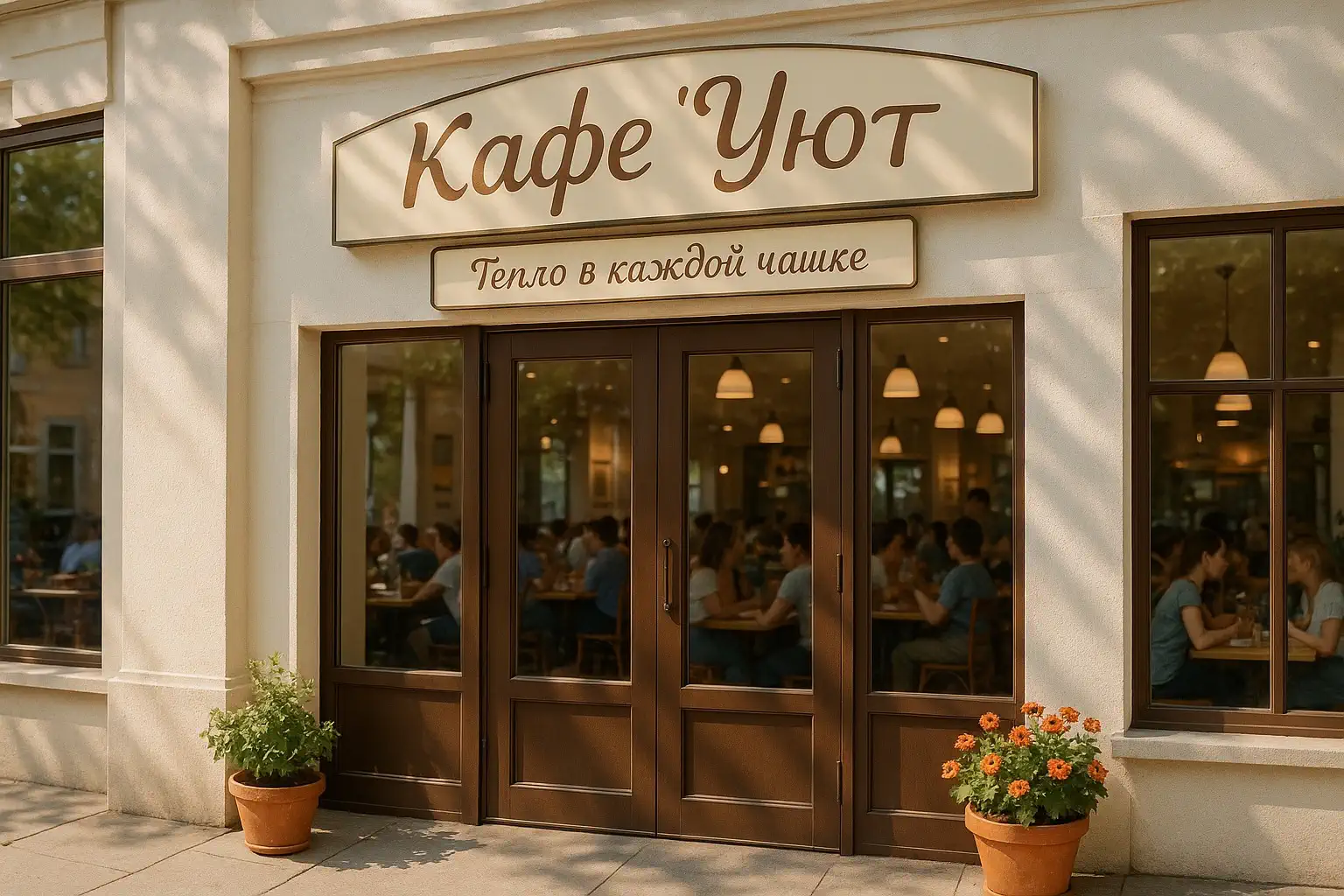
Prompt: Depict the entrance to a bright, lively city café. Above the door — a bright, neat sign reading "Cozy Café," rendered in a clean handwritten font with a slight curve. The sign's colors are a soft beige background with warm brown letters. Below the main sign add a small plaque with the slogan: "Warmth in every cup." The plaque is done in the same style — light handwritten font, soft backlighting. The building's façade is light-colored and plastered, with large windows and fresh potted flowers by the entrance. The weather outside is pleasant and sunny, with soft daylight. The atmosphere is light, welcoming, and warm. --size 1536x1024. Published in the GPTunneL gallery.
Using images as attachments
Unlike other image generators, GPT-4o supports native image modification. You can upload images and use them as a starting point or reference for creating entirely new images. Let's look at how this works in practice on GPTunneL.
- First, you need to upload your image directly in Creative.Lab. The system supports several popular formats, such as PNG, JPEG, and WEBP.
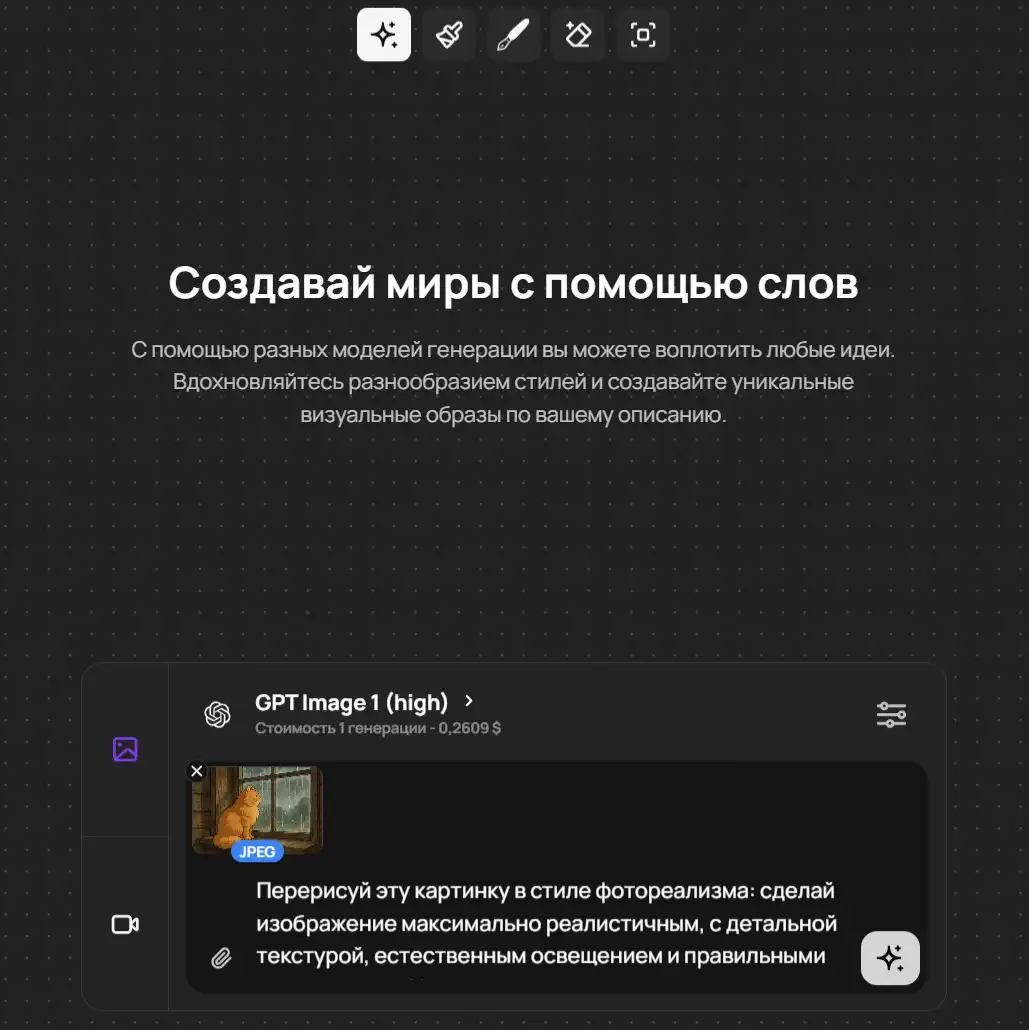
- Then simply enter a text prompt describing exactly what you want to change or create based on the uploaded image.
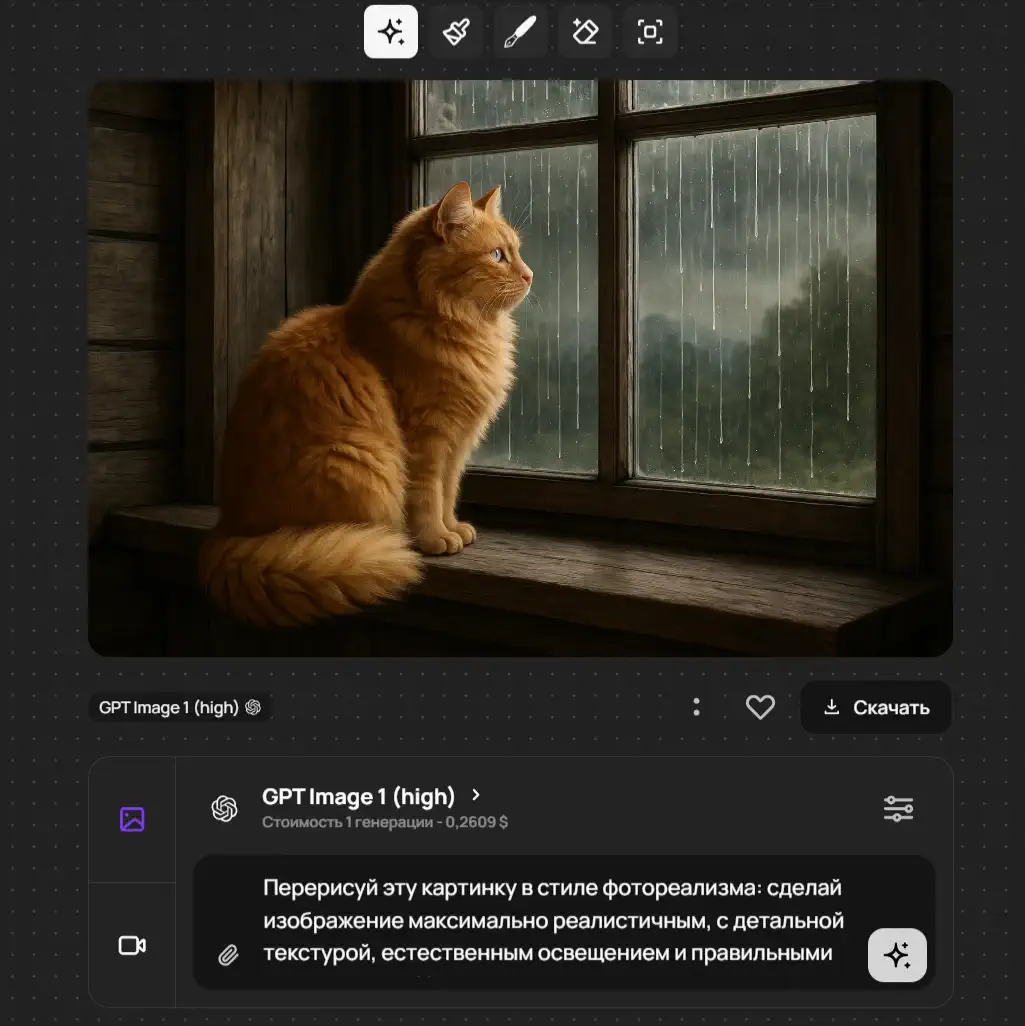
And here's the result: you get a new image where modifications were made only to the aspects you specified in the request. This is a unique capability of GPT-4o, since far from every image generator can work this subtly and selectively with reference images.
What to keep in mind when generating
Despite its advanced capabilities, image generation has its own quirks and limitations:
- Prompt complexity. Although the model handles more objects, prompts that are too long and convoluted can lead to unexpected results or "hallucinations."
- Detail accuracy. Sometimes the model may inaccurately reproduce fine details or certain aspects of the request.
- Multilingual text. Minor issues can arise with non-Latin characters or complex fonts.
- Editing. Changing individual parts of an image or faces may not always be consistent, especially if the prompt doesn't clearly describe what you need.
- Content restrictions. GPT-4o's image generator, as well as the GPTunneL platform itself, has usage rules that prohibit generating images with certain content (for example, overtly controversial content, content that infringes copyright, or content depicting real people without permission).
Conclusion
Image generation in GPT-4o is a powerful and convenient tool built directly into the conversational model. By using detailed, clear text descriptions and an iterative approach, you can bring your ideas to life visually. Experiment with prompts, explore the model's capabilities, and you'll see how easy it is to create unique images for any of your tasks. Try it yourself on the GPTunneL platform!