
Creating visual content has always been a balancing act between speed, quality, and budget. Seedream 4 from ByteDance is a powerful tool that fundamentally shifts that balance, offering professional-grade image generation with impressive speed and flexibility.
This article is your complete guide to working with Seedream 4. We'll break down what makes this model unique, how to apply it in creative and business contexts, and how to write prompts that deliver predictable, high-quality results.
You'll learn about new capabilities such as:
- Using up to 5 reference images
- Batch generation of up to 4 images at once
- Precise editing in natural language
We'll cover practical use cases for marketing, e-commerce, creative work, and editorial illustration. The full power of Seedream 4 AI is now available in GPTunneL's Creative Lab, so you can test everything covered in this article yourself.
Key takeaways
Seedream 4 offers control over composition, style consistency, and high detail, making it an indispensable tool for creating visuals. It lets you generate content for marketing and e-commerce and quickly build prototypes. Getting started is easy: the model is already integrated and available in GPTunneL for your projects.
Key features of Seedream 4
To understand what sets Seedream 4 apart from other models, it's worth looking at its key strengths. These capabilities not only simplify the image creation process but also open new horizons for creative and business tasks, making professional design more accessible. Here are the model's main advantages:
- Multimodality. In GPTunneL, the model can work with text and reference images simultaneously (up to 5 at once). This simplifies visual creation, ensuring precise adherence to style and composition — as if you were working from a professional brand book. The generation process becomes intuitive even for users with no design experience.
- High detail and realism. Seedream 4 renders textures, light, shadows, skin, and other materials at various levels of detail, including up to 4K. If your content needs to look like the result of a professional photoshoot, this model handles the task, offering options for complex lighting and mood.
- Flexible styles for any task. From photorealism to anime, watercolor, and 3D — the model lets you customize images for any business need. You can quickly adapt visuals for a specific ad campaign or product, experimenting with styles without needing extra tools.
- Precise prompt adherence. The model deeply understands the nuances of a request, including emotion, mood, and small details. This significantly speeds up iteration when developing ideas as a team. The ability to generate up to 4 unique variants per request is especially useful for testing different options for ads or website illustrations.
- Accessibility and ethics. Seedream 4 offers a strong price-to-quality ratio, making it appealing for freelancers and startups as well as large agencies. ByteDance also pays attention to ethical questions, striving for transparency in the data sources used to train the model, which helps manage copyright concerns and ensures safety when adopting AI into workflows. You can check generation costs on our pricing page.
These strengths make Seedream 4 a full-fledged tool for creating next-generation visual content.
How to get started with Seedream 4
Getting up to speed with Seedream 4 is easier than it sounds. Thanks to GPTunneL's intuitive interface, you can start generating images almost right away. Here's a step-by-step guide to help you get oriented quickly and get your first results.
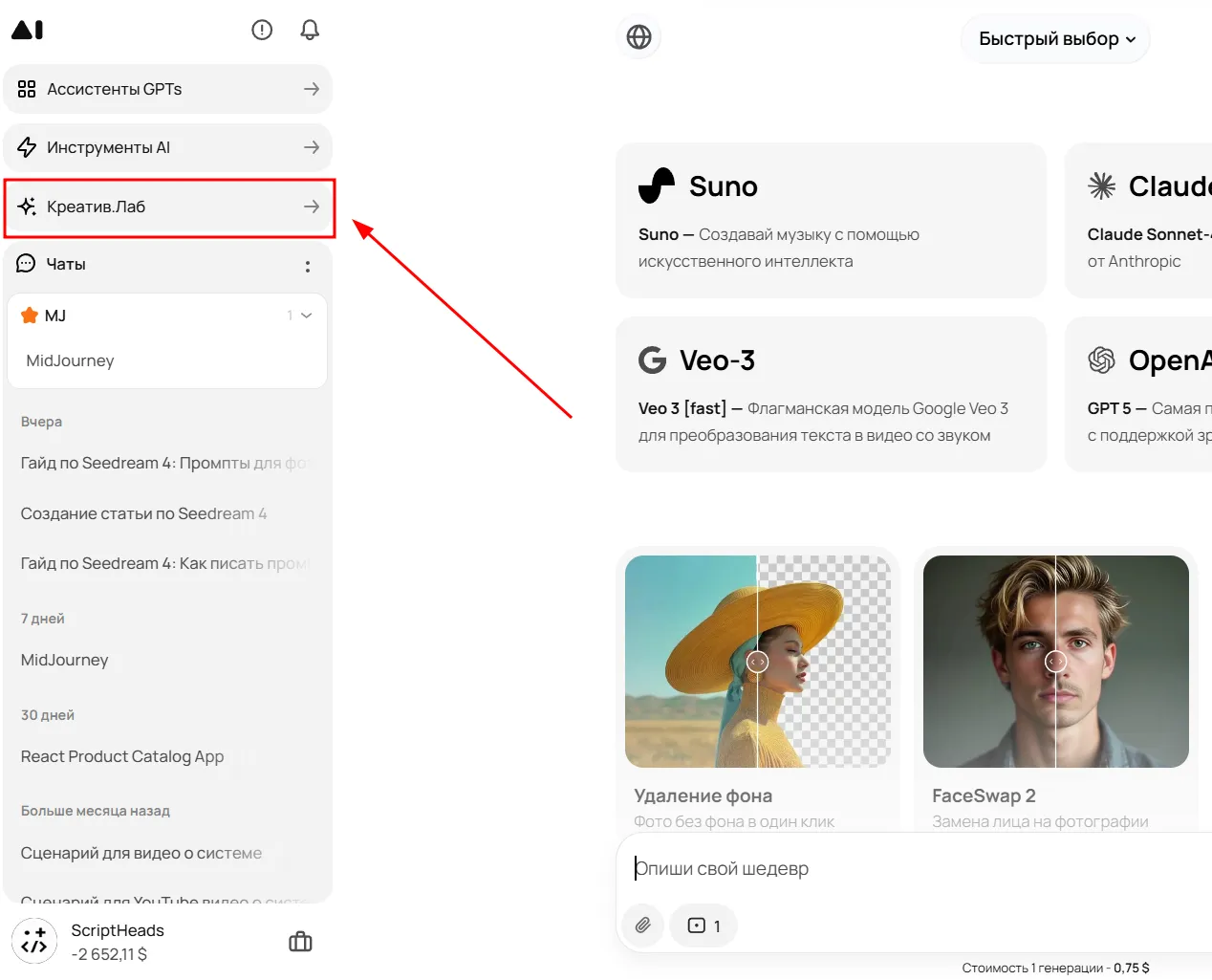
First, open Creative Lab and choose the model
To start using Seedream 4, open Creative Lab in GPTunneL by clicking the button in the left-hand menu. Then, using the prompt bar at the bottom of the screen, select Seedream 4 among the models for image and video generation.
Prepare your materials
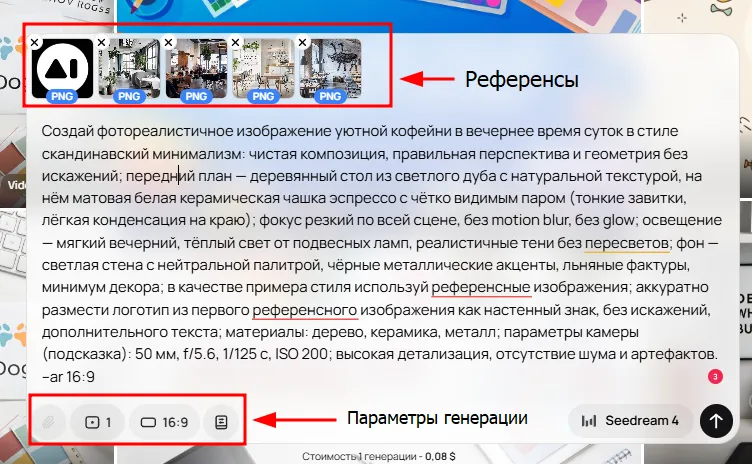
Write a basic prompt to see how the model responds and what it suggests. Start with simple tests — that's the best way to understand how it works. Choose your generation parameters:
- Number of generations in the result;
- Style;
- Aspect ratio.
If needed, upload up to 5 reference images to give the model extra context. These can be elements from your brand book, product photos, or simply images that set the desired style.
Next, choose your desired generation style
Creative Lab offers a wide range of preset options:
- Photorealism;
- Anime;
- Watercolor;
- Cyberpunk;
- Ghibli Studio;
- Pixel Art;
- Cartoon;
- Minimalism;
- 3D Model.
You can also experiment with different styles by specifying their parameters in your prompt to quickly find the best solution. This iterative approach saves time and helps you see the potential in your ideas.
After generation, review the results right in the interface
If refinement is needed, you can edit the details:
- Change the color of an object;
- Adjust the composition;
- Remove the background or specific elements from the image;
- Turn the picture into a video.
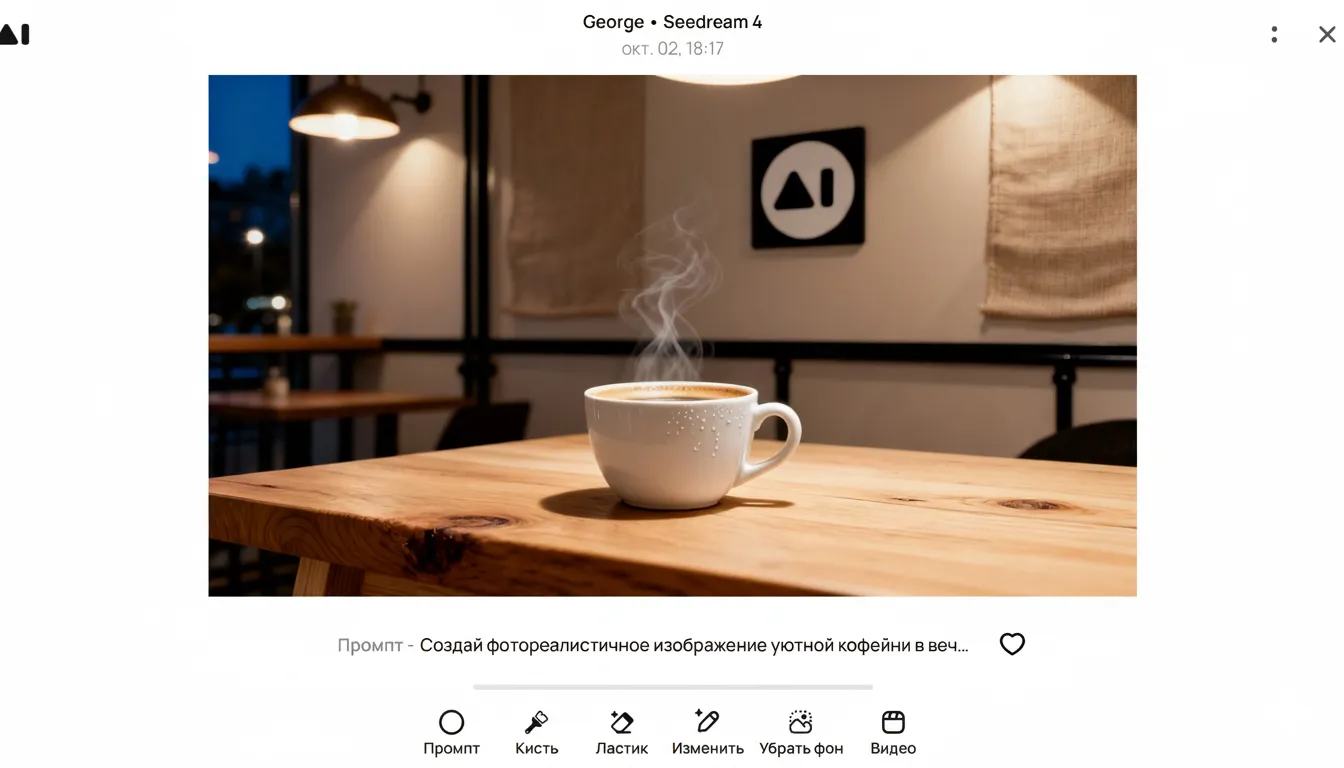
To edit an image with this model, you need to:
- Download the image;
- Attach it as a reference;
- Ask Seedream 4 to generate using a new prompt.
For example, here's an editing prompt: "Tip the cup over and spill the coffee — a puddle with an uneven edge, thin trails running to the edge of the table. Add a cat on the table nearby: body slightly turned away, ears neutral, eyes wide open and looking away — a "wasn't me" expression."
The result will be a new image. Customize it in GPTunneL!
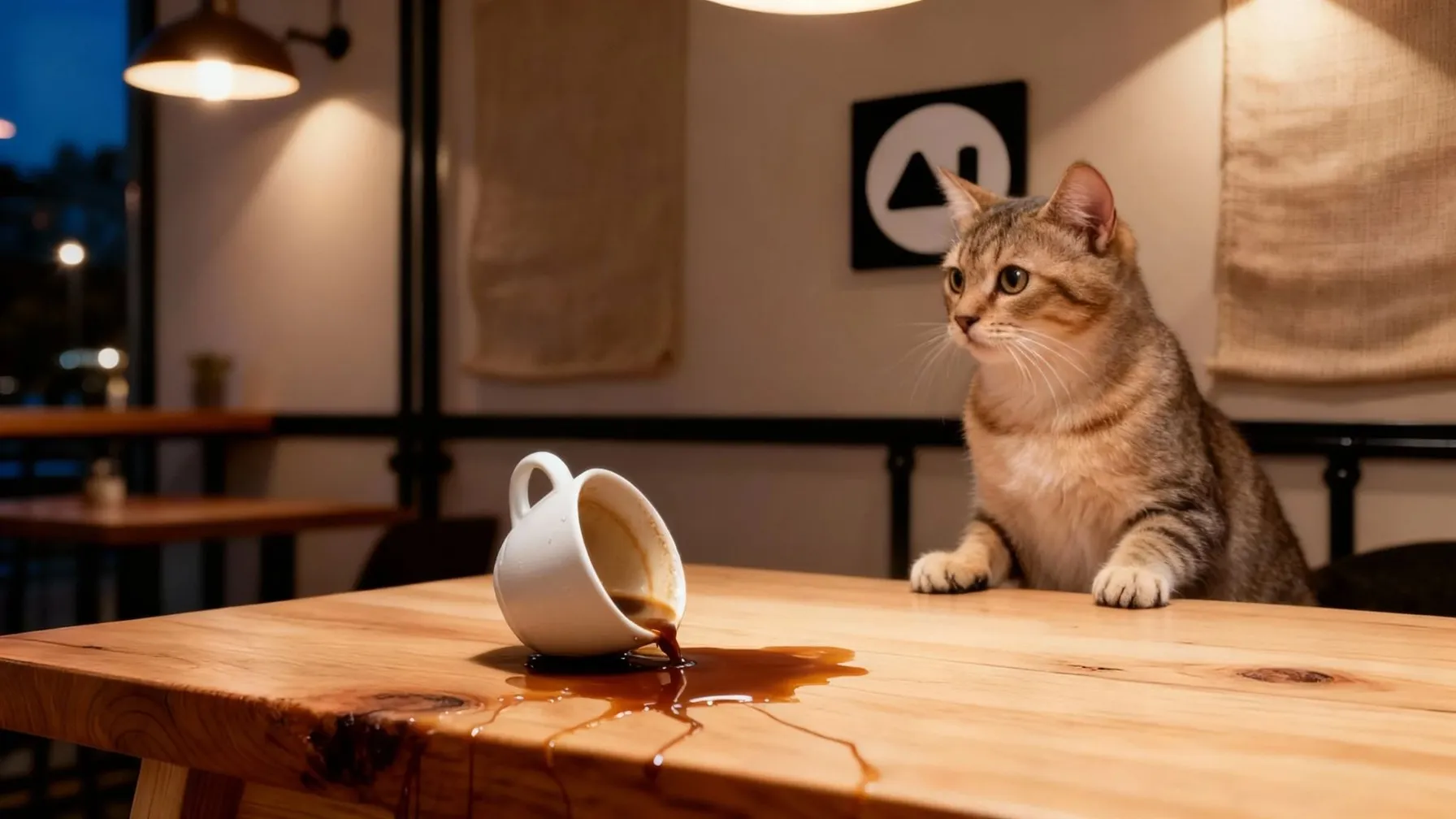
Once the image is ready, export it in the format you need for marketing materials, presentations, or product design. The process from idea to finished visual takes minutes.
Prompting techniques for Seedream 4
To get predictable, impressive results from Seedream 4, it's important to master the art of writing prompts. An effective prompt isn't just a set of keywords — it's a clear instruction for the model. Below we'll cover proven techniques that will help you control generation and bring your boldest ideas to life.
Structure your request using the formula: subject, action, environment, and style. This approach helps the model precisely understand your idea. Add vivid adjectives to convey mood and lighting. For longer prompts, you can use the TCRTE method:
- Task (the goal);
- Context (details);
- References (reference images);
- Testing (quality check);
- Enhancement (refinement).
This lets you approach generation systematically, clarifying each aspect step by step. Also, use natural language and focus on positive phrasing. Here's what to keep in mind:
- Instead of writing "not red," specify the color you actually want;
- Use negations only in rare cases, when you need to exclude a specific element;
- A good technique is the "sandwich method," where the main request is framed with additional context, which improves images, especially in complex scenes.
Experiment with prompt length. Short prompts work well for simple ideas, while longer ones let you control the finest details, such as material textures, character emotions, or atmosphere. It's best to refine one aspect at a time, iteratively.
For example, first get the composition right, then work on lighting. This approach, sometimes called "self-improvement looping," lets the model adjust its generations based on your refinements, gradually bringing the result closer to your ideal. Here are a few more tips that may help:
- Specify technical parameters. Don't forget aspect ratio (framing), resolution, and media type (e.g., "oil painting," "3D render") to achieve the desired aesthetic effect.
- Emphasize key elements. Use modifiers like "high detail," "photorealistic," or specify artistic influences (e.g., "in the style of Van Gogh") to steer the model toward the result you want.
- Avoid vague terms. Instead of "beautiful light," use specific keywords such as "soft shadows" or "golden hour light." This gives the model clear visual anchors.
Test zero-shot or few-shot approaches: in the first case, you give a request with no examples; in the second, you provide one or more samples so the model picks up the pattern. This improves accuracy on unusual or custom tasks.
Example prompts for image generation
Theory matters, but practice is the best way to learn. To help you start experimenting right away, we've prepared four ready-made prompt examples for different scenarios and styles. Each one shows how the structure and detail of a request shape the final result.
Photorealism for marketing
Prompt: "Create a photorealistic image of a cozy coffee shop with a bar counter in the evening, in a Scandinavian minimalist style: clean composition, correct perspective and geometry with no distortion.
Foreground — a light oak wooden table with natural texture, holding a matte white ceramic espresso cup with clearly visible steam (thin curls, light condensation on the rim).
Background — café tables with a few people sitting at them, sharp focus throughout the scene, no motion blur, no glow.
Lighting — soft evening, warm light from hanging lamps, realistic shadows with no blown-out highlights."
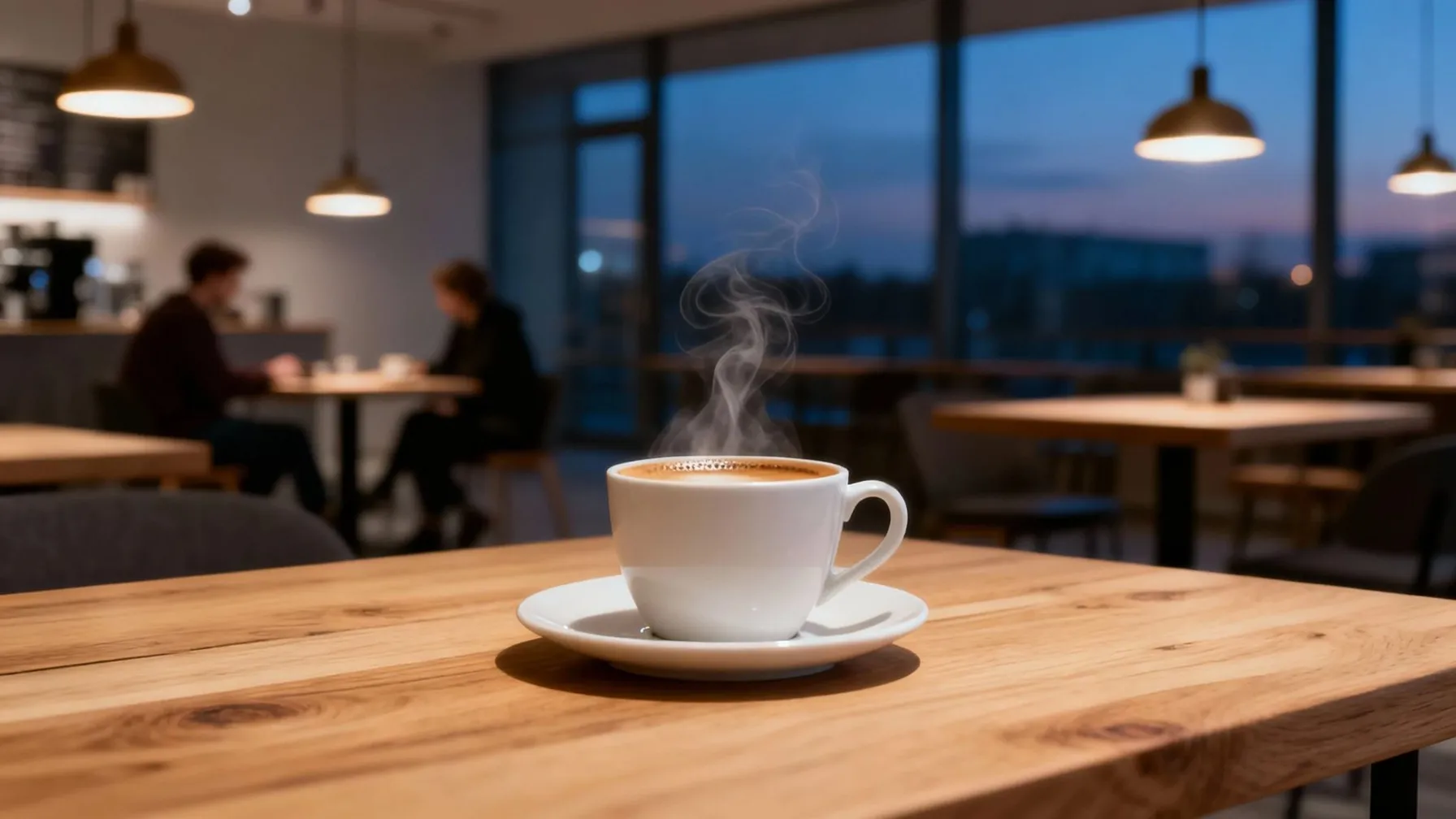
This prompt works because it focuses on lighting detail (soft evening light), atmosphere (cozy coffee shop), and framing (café tables with a few people), which is ideal for producing professional advertising materials. Customize this image in GPTunneL!
Anime for creative work
"Generate a highly detailed anime scene in cel-shading style: a single hero on a rooftop in the rain in a dense vertical megacity, low 3/4 angle, rule-of-thirds composition.
Character: a slim young man, 18–22, short tousled hair with thin glowing strands, a tech implant at the temple, a light tactical coat with raised shoulders, tactical boots; pose — standing at the roof's edge, coat billowing, hands in pockets, gaze toward distant lights; emotion — quiet contemplation.
Palette: cool neon blue and purple accents on a dark graphite background, contrasting warm glints from amber ads, occasional flashes of acid cyan; the city — multilevel bridges, glass facades, pipelines, holographic panels.
Lighting: harsh neon backlight + soft side rim light; wet surfaces produce sharp specular highlights and mirror reflections in puddles (symbols abstract, no readable text). Rain — diagonal, drops on skin and fabric, water trails on the coat; light steam near ventilation shafts.
Lines — clean 1–2 px outline; shadows — 2–3 solid tones; textures — matte fabric, wet metal, glass; no motion blur, no gaussian blur, no bloom/glow, no chromatic aberration, no artifacts or watermarks. --ar 16:9."
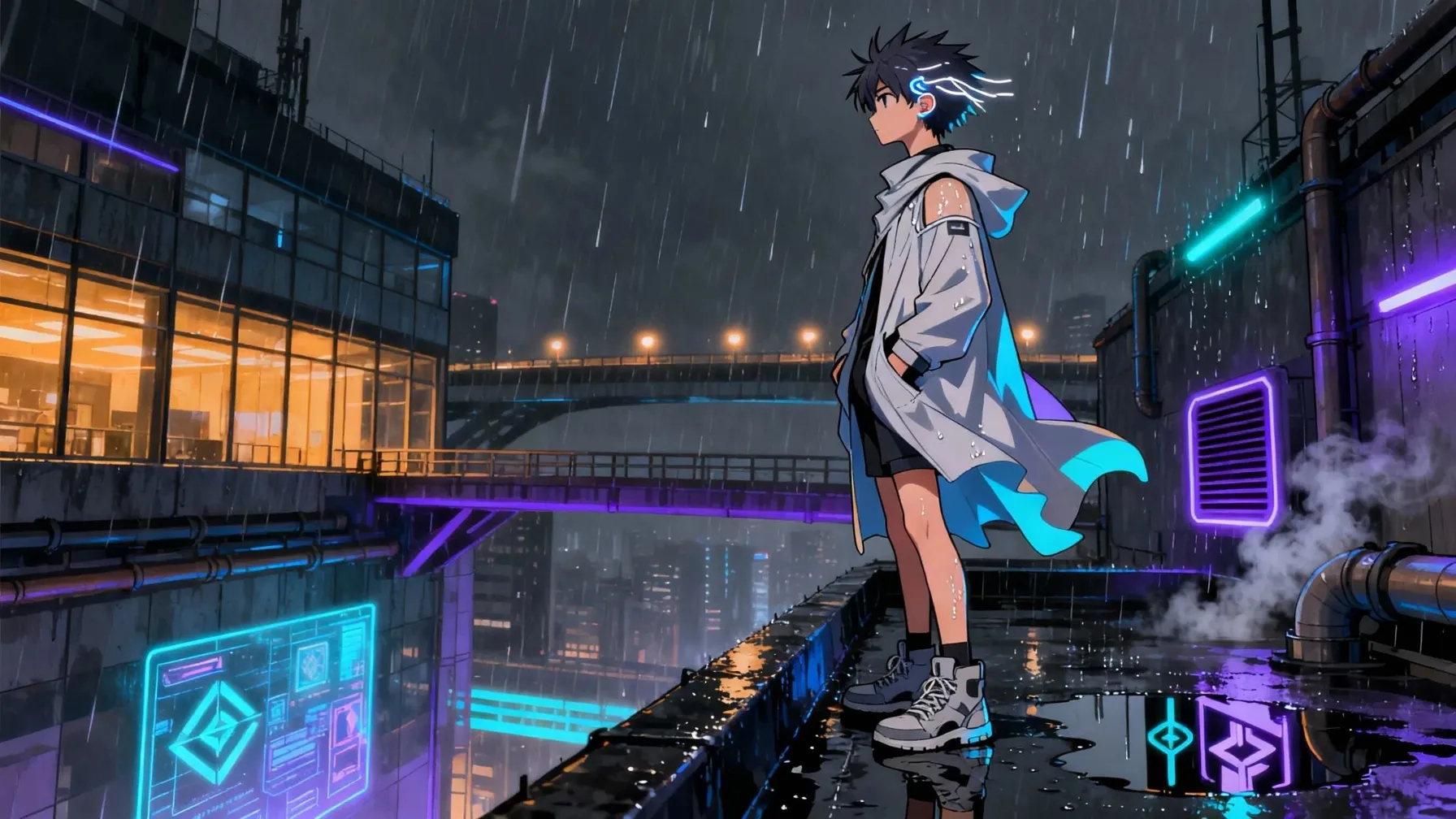
Here the emphasis is on color palette and detail, helping create a bold, engaging visual for creative projects, such as a cover or concept art. Customize this image in GPTunneL!
3D for product shots
Prompt: "Generate a photorealistic 3D scene: a smartwatch on a runner's wrist during a morning run in a park at sunrise; close ¾ shot, the watch takes up ~45% of the frame, natural hand and forearm anatomy (visible tendons, slight muscle tone), correct perspective with no distortion.
Materials: case — matte bead-blasted aluminum with fine texture and barely visible micro-scratches; strap — satin-finished silicone with fine texture and slight stretch marks near the holes; skin — a thin film of sweat with pinpoint droplets.
Screen — tempered glass with an oleophobic coating, believable specular highlights and a sharp highlight from the low sun; the interface is abstract (simple geometric indicators with no readable text or brands).
Environment: a park path with fine gravel, grass and tree trunks in soft bokeh; puddles with mirror-like reflections of the sunrise glow and foliage (abstract shapes); motion frozen, with the watch, strap, and fingers in sharp focus while the background is moderately blurred; no motion blur, no gaussian blur, no bloom/glow, no chromatic aberration, no watermarks. Neutral white balance with a slight warm shift."
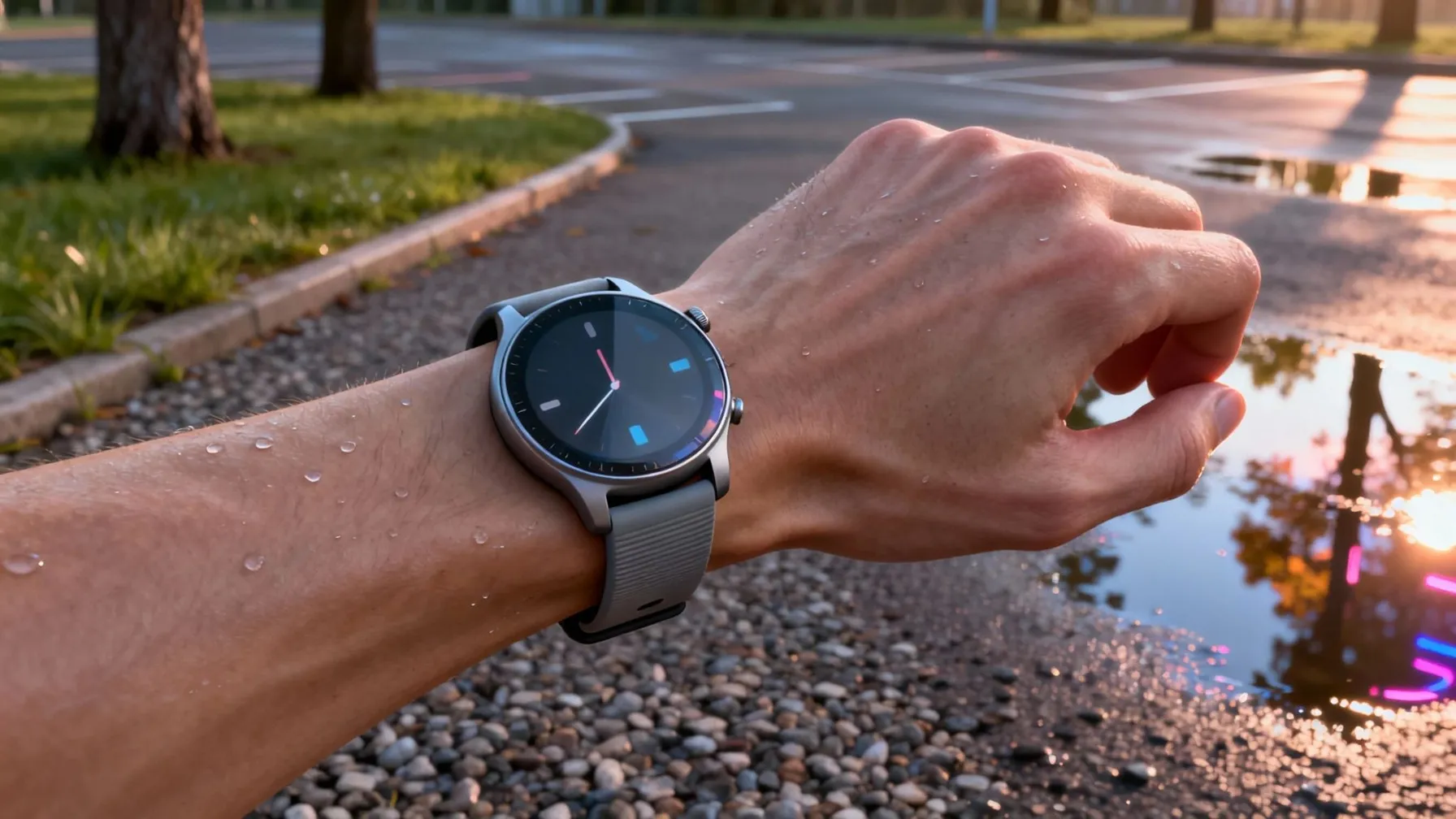
This prompt emphasizes material textures and action, which is critical for showcasing products in e-commerce. For further customization, you can also add references of similar gadgets for case design. This helps the model accurately reproduce the desired result. Customize this image in GPTunneL!
Watercolor for art
Prompt: "Generate an artistic watercolor landscape of a mountain lake at sunrise in a wet-on-wet technique: mirror-smooth water, soft haze at the foot of the mountains, a thin edge of forest; a pastel palette — pink, light blue, lilac — with natural gradations and pigment granulation.
Visible texture, light bleeds, feathered edges; semi-transparent brush strokes, layered glazing, soft "blurs" achieved without hard outlines (softness comes from watercolor blending, not digital blur).
Composition: horizontal, rule of thirds — distant peaks in the upper third, shoreline and reflections in the lower; soft morning light with a warm glow on the clouds, a calm, peaceful mood.
Color mixing: pink dawn, cool blue air, lilac shadows in the snow and water; reflections slightly diffused, without "mirror-like" photorealism. Incorporate an impressionist style: vibration of color patches, varied saturation, preserving the whiteness of the paper for highlights.
No readable text, no watermarks, no digital noise, no hard lines or halos from irrelevant sharpening."
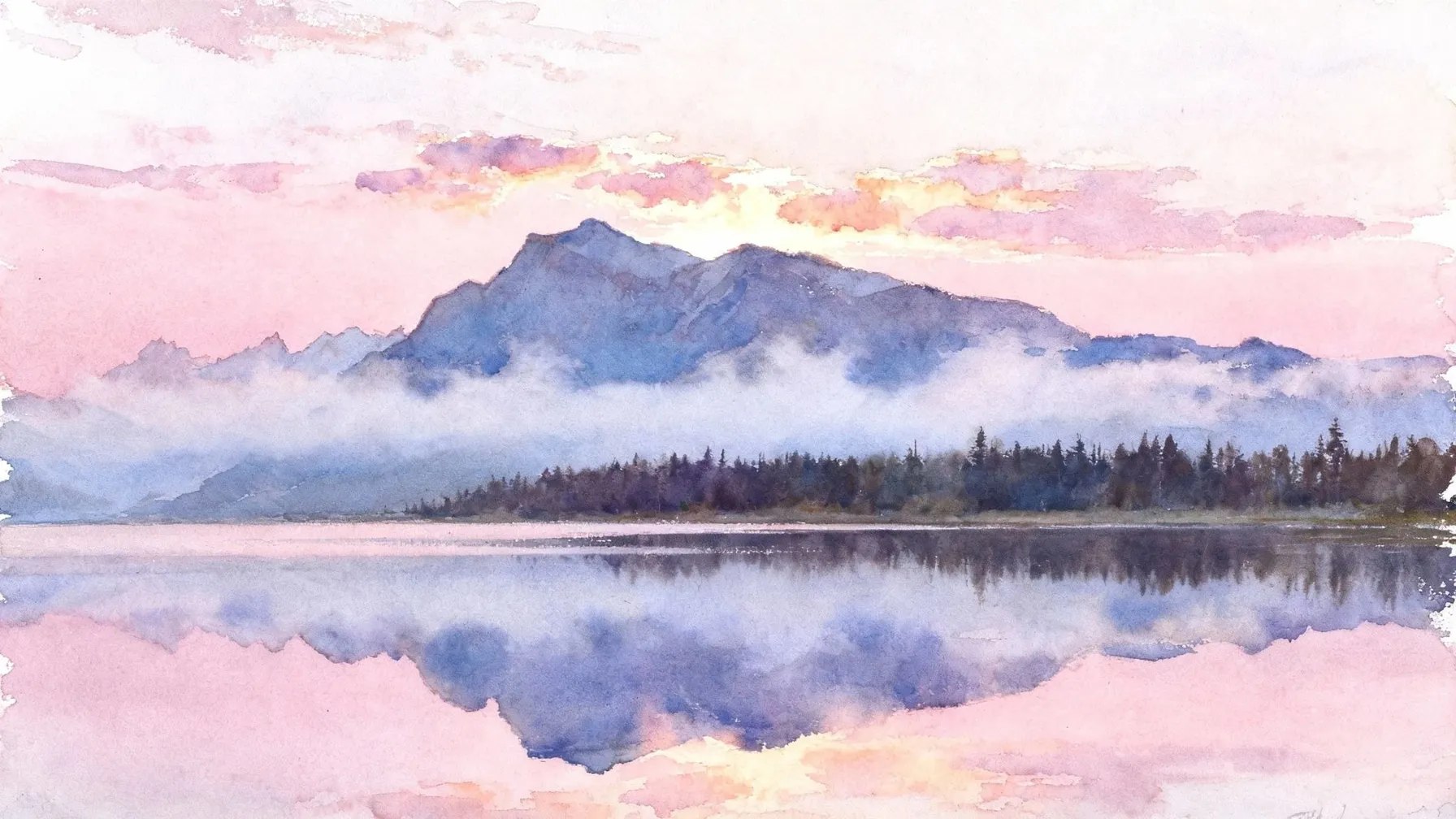
This example uses "soft" modifiers (pastel tones, light strokes) to create an artistic effect. Three paintings were used as references for this image:
- J. M. W. Turner — The Blue Rigi, Sunrise (1842)
- Rudolf von Alt — Hallstatt am Hallstättersee (1838)
- Albert Bierstadt — Lake Lucerne (c. 1858–1860)
This approach is ideal for illustrations, decorative prints, or unique social media content. Customize this image in GPTunneL!
Hero shot of a product using a few-shot prompt
Prompt: "Generate a premium hero shot of a hair dryer lying on its side: close 3/4 angle, clean gradient background, complex lighting (key softbox + subtle rim accent), physically accurate shadows, PBR materials (matte metal, glossy inserts, polycarbonate grille).
Example 1 (shape): "short handle, rounded 'head', proportion ≈ 1:1.2, air intake with a radial grille" — match the same shape as the dryer in image 1.
Example 2 (light): "soft key light from the right, narrow rim light along the body's edge, controlled specular highlights with no blown-out areas" — replicate the same lighting setup as in image 2.
Example 3 (background/palette): "smooth, cool grey-steel gradient" — apply the background as in image 3. Rule-of-thirds composition; no motion blur, gaussian blur, bloom/glow, chromatic aberration, watermarks."
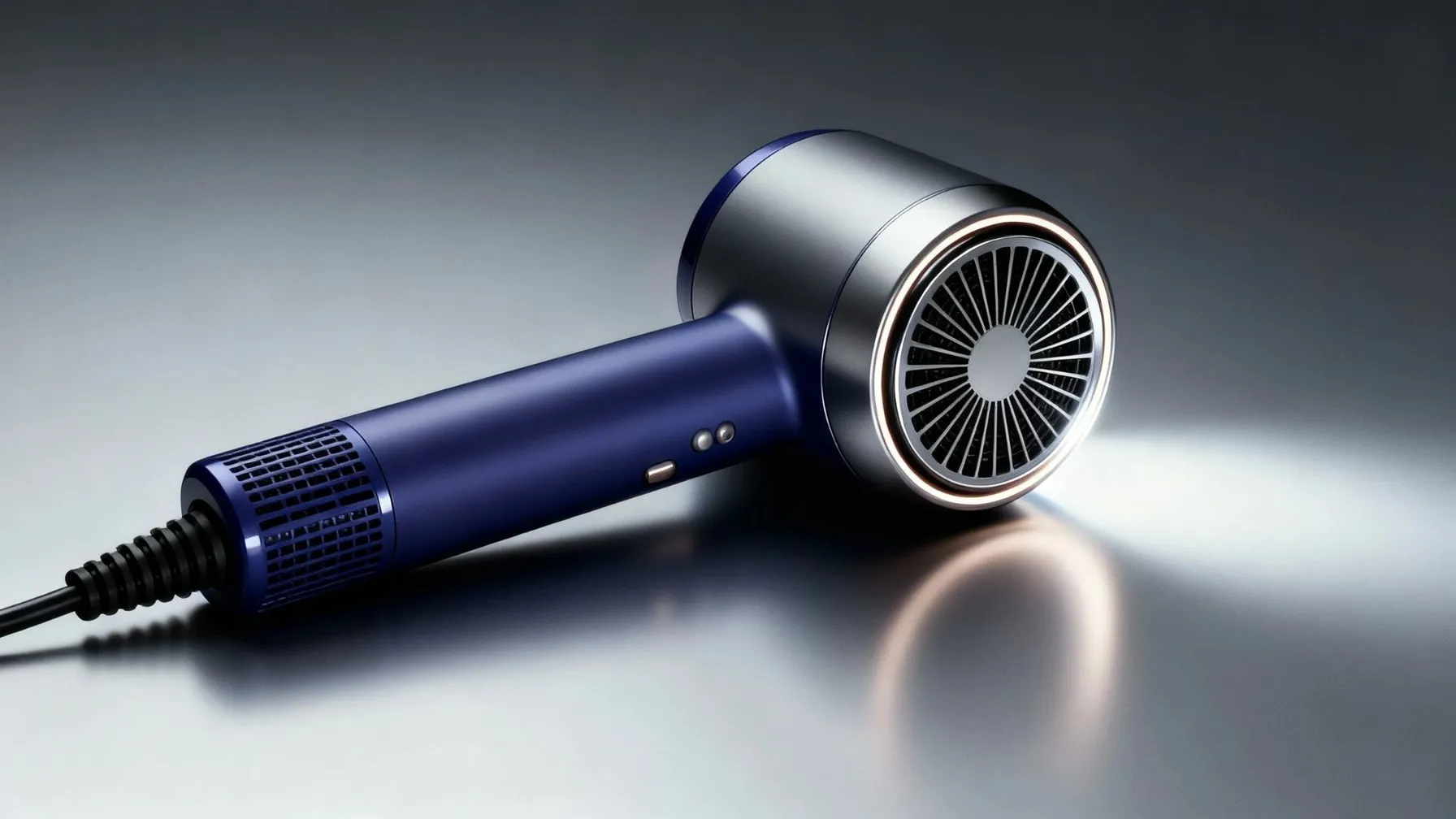
This prompt works because it locks in three quality keys: shape (image 1), light (image 2), and background/palette (image 3). The model reads the pattern from the examples and reproduces it. Here's what we used as references:
- Dyson Supersonic HD07 — front and side photographs
- Example of softbox rim lighting
- A smooth, cool grey-steel gradient
In addition, explicit exclusions (no blur/CA) and a defined composition produce a stable, clean hero shot. Customize this image in GPTunneL!
But what if you need to change the color of the dryer and the background without changing the overall composition? Use the editing feature.
Editing prompt: "Edit the photo: recolor the dryer's body in purple with a metallic grain finish; the rings/buttons — warm matte gold. Change the gradient background color to black shifting into purple. Do not change the shape, angle, or lighting of the dryer. Do not add anything new."
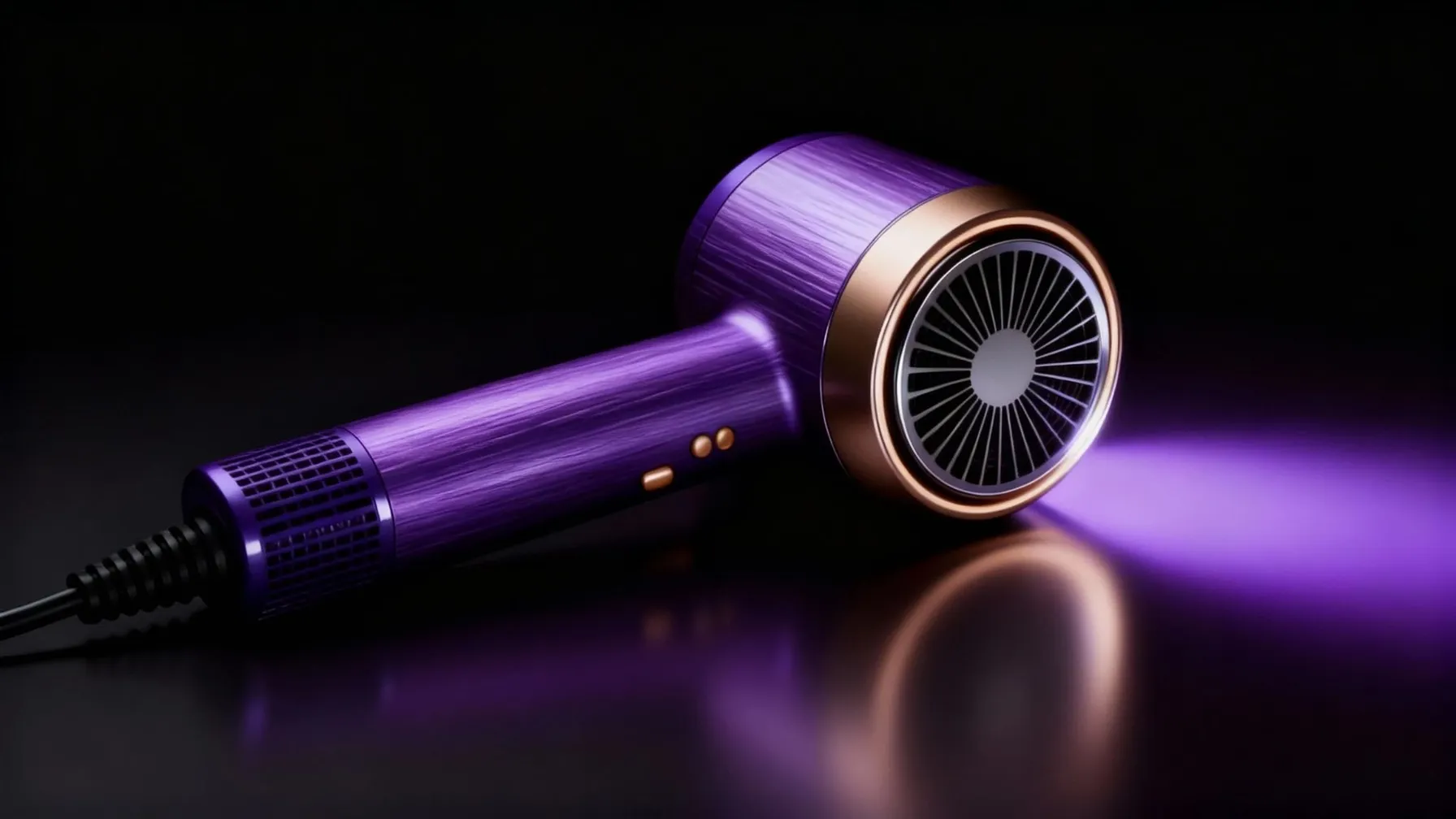
This request locked in only two edits — color and background — with a precise palette and material description ("metallic grain finish"), while preserving the geometry and composition. The model confidently swapped the colors with no artifacts.
Read our article on how to create a product card for a marketplace using AI for image generation and editing, and then bring it to life with a video generator.
These examples show how combining clear instructions, references, and stylistic direction lets you get predictable, high-quality results with Seedream 4.
Common prompting mistakes and how to avoid them
Even with a powerful tool like Seedream 4, you can run into trouble if your prompts are poorly written. Understanding common mistakes helps you optimize the process and get the results you want faster. Let's go through the most frequent problems and how to solve them.
One of the biggest mistakes is overly generic prompts:
- A request like "draw a house" can produce thousands of random variations.
- Instead, specify details: "draw a two-story Victorian-style house with a red roof, surrounded by a garden, in the light of a setting sun."
Being specific and adding references for style or composition helps steer the model and ensures a coherent result. The more precise the request, the more predictable the outcome.
Another problem — overloading the prompt with negations
AI models work better with positive instructions. Instead of "no red, no people, no cars," try describing what you actually want to see: "an empty street with gray buildings in blue and green tones." Focus on the desired outcome — this gives you more control over generation.
It's also important to check prompts for hidden bias
If you're describing a character or scene, avoid stereotypical traits tied to emotions, professions, or appearance.
For example, instead of "angry boss," describe specific emotions and details: "a man in a business suit with furrowed brows and a tense posture." Iterative testing helps identify and correct unexpected artifacts in images that can arise from such biases.
Finally, keep technical limitations in mind
Seedream 4 supports up to 5 references, but that doesn't mean you should always use the maximum. Too many references can confuse the model. Choose only the key images that show what you want to achieve:
- Style;
- Composition;
- Object identity.
Combine them with clear text specifications for better performance. The optimal number of references is usually 2–3, unless the task requires combining more complex elements.
Business use cases
The flexibility and power of Seedream 4 open up broad opportunities for businesses across a wide range of industries. The model helps you not only save resources but also improve the quality of your visual content. Let's look at real-world scenarios that are already transforming workflows today:
- In marketing. Generate custom banners and creatives for ad campaigns. Using references with your logo, brand colors, and fonts, you can create dozens of variants in minutes for A/B testing. This lets you quickly test hypotheses and improve ad performance without hiring designers.
- For e-commerce. Create 3D models and lifestyle photos of products in various settings. By uploading a reference of the product, you can place it in any interior or scenario, boosting conversion through realistic, appealing visuals. No more expensive photoshoots.
- In design agencies. Speed up prototyping of illustrations, concept art, and characters. The model lets you generate images in styles ranging from watercolor to anime, iteratively refining details together with the team and the client. This cuts down approval time and minimizes delays.
- For startups. Develop content for social media. Seedream 4 lets you generate many image variants with different emotional tones, adapting them to your target audience at minimal cost. It's an ideal solution for staying active on social media on a limited budget.
- Large brands. Integrate the model into existing workflows for premium content creation. By focusing on complex lighting, textures, and detail, you can ensure full alignment with a brand book, using precise references and maintaining a consistent visual style across all platforms.
- In education and creative fields. Experiment with flexible styles to create illustrations for educational materials or realize art projects. High detail and the ability to generate complex scenes boost audience engagement and open new creative horizons.
These examples demonstrate that Seedream 4 isn't just a tool for entertainment — it's a powerful business solution capable of delivering real value.
Ethics and rights tips
Adopting AI tools like Seedream 4 into your workflow requires a responsible approach. Questions of ethics and copyright are front and center, and ignoring them can lead to serious reputational and legal risks. Here are a few key tips to help you use the model safely and ethically.
Always check the copyright status of your reference images
For commercial use, only upload images that are in the public domain, or ones you have a license or ownership rights for. This is a basic rule that helps avoid infringement and legal disputes.
Manage data transparently
In team settings, it's especially important to set up a consistent and transparent workflow. Here's what you can do in the context of Seedream 4 prompting:
- Document your prompts;
- Keep track of the references used and the resulting generations.
This kind of traceability helps you not only maintain internal standards but also comply with data protection regulations such as GDPR. Clear documentation is the foundation of order and safety.
Avoid generating content that could be seen as misleading, such as visuals for fake news or deepfakes. Focus on ethical prompts — requests aimed at creating positive, useful content. Responsibility for the final use of the image, as well as ownership rights, rests with you.
For businesses, it's critical to establish internal AI usage policies
Train your teams on responsible AI principles, including checking generations for the presence of:
- Emotions;
- Social groups;
- Cultural attributes.
This helps maintain inclusivity and avoid perpetuating harmful stereotypes. Seedream 4 is an official tool, but its use still requires oversight.
Finally, treat the model as a tool that complements human creativity rather than replacing it. Combine generated images with manual refinement. This not only adds uniqueness and artistic value to the result but also provides an added layer of legal safety, since the final product becomes a joint creation of human and machine.
Why Seedream 4 will change your approach to image generation
Thanks to powerful features such as multimodality, support for up to 5 references, and a wide range of styles, Seedream 4 simplifies content creation, significantly cutting time and costs. There's no need for lengthy photoshoots or complex 3D modeling to get the result you want. As experts note, the key to success lies in mastering "killer prompts" — effective requests that unlock the model's full potential.
Don't put off until tomorrow what could transform your approach to content today. Start testing Seedream 4 in GPTunneL, and experiment with the examples and techniques from our guide. This is your chance to unlock new horizons in visual content creation and stay one step ahead of the competition in 2025!
FAQ
How many references is optimal?
Start with 2–3 references for simple tasks so you don't overload the model. For complex compositions that need to combine several elements, you can use up to 5 images, but do so thoughtfully to avoid confusion.
How can I improve detail?
Add modifiers to your prompt like "high resolution," "4K," "photorealistic," "sharp focus." Also specify lighting parameters (e.g., "soft studio light") and test different variants to find the best one.
Does it work on mobile devices?
Yes, Seedream 4 is available through GPTunneL's web interface, which is optimized for mobile devices. However, for complex tasks and working with many references, we recommend using the desktop version for better performance and convenience.
What should I do about artifacts?
If unwanted artifacts appear in the image, try rewording the prompt to be more specific in the problem area. Sometimes it helps to swap out reference images or iteratively refine the request, focusing on fixing one element at a time.
How can I integrate this with other tools?
For advanced users, integration is possible through the GPTunneL API. This lets you connect image generation with your other tools, such as Canva or Figma, automating workflows and creating a seamless design pipeline.