
ElevenLabs is one of the leading platforms for text-to-speech generation and voice cloning, and it suits audiobooks, podcasts, video content and much more. Thanks to powerful features such as highly realistic speech playback and flexible settings, users can create content with fine control over the emotion, tone and pace of speech. GPTunneL has two tools built on this platform: Voiceover and Sound Effect Generation.
Voiceover
The "Voiceover" tool in GPTunneL lets users synthesise speech from text using different voices, styles and settings that can be adapted to specific needs. It is an excellent tool for creating voiceovers for video and podcasts, as well as for generating narration for a range of projects.
Usage examples
- Podcasts and audiobooks: Use more stable voices with a high level of clarity for audiobooks and podcasts.
- Video content: Pick variable voices for video content and add expressiveness through style.
- Training courses: For recording lessons and courses, pick voices with a high level of stability and a neutral style.
Choosing a voice
The interface offers a wide choice of voices split into two categories:
- Next-generation voices: These are higher-quality, more expressive voices that can be used for various types of content (stories, news, a strong voice and so on). In this category you will find voices at different price levels (for example, $$$ marks a higher generation cost).

Next-generation voices
- Budget voices: These voices offer more affordable options with lower generation costs. Despite the lower price, they still suit plenty of projects, such as neutral narration or cheerful intonations.

Budget voices
To pick a voice, simply click the one you like. For example, you can choose the Sergey voice for stories or Kira for news material.
Voiceover settings
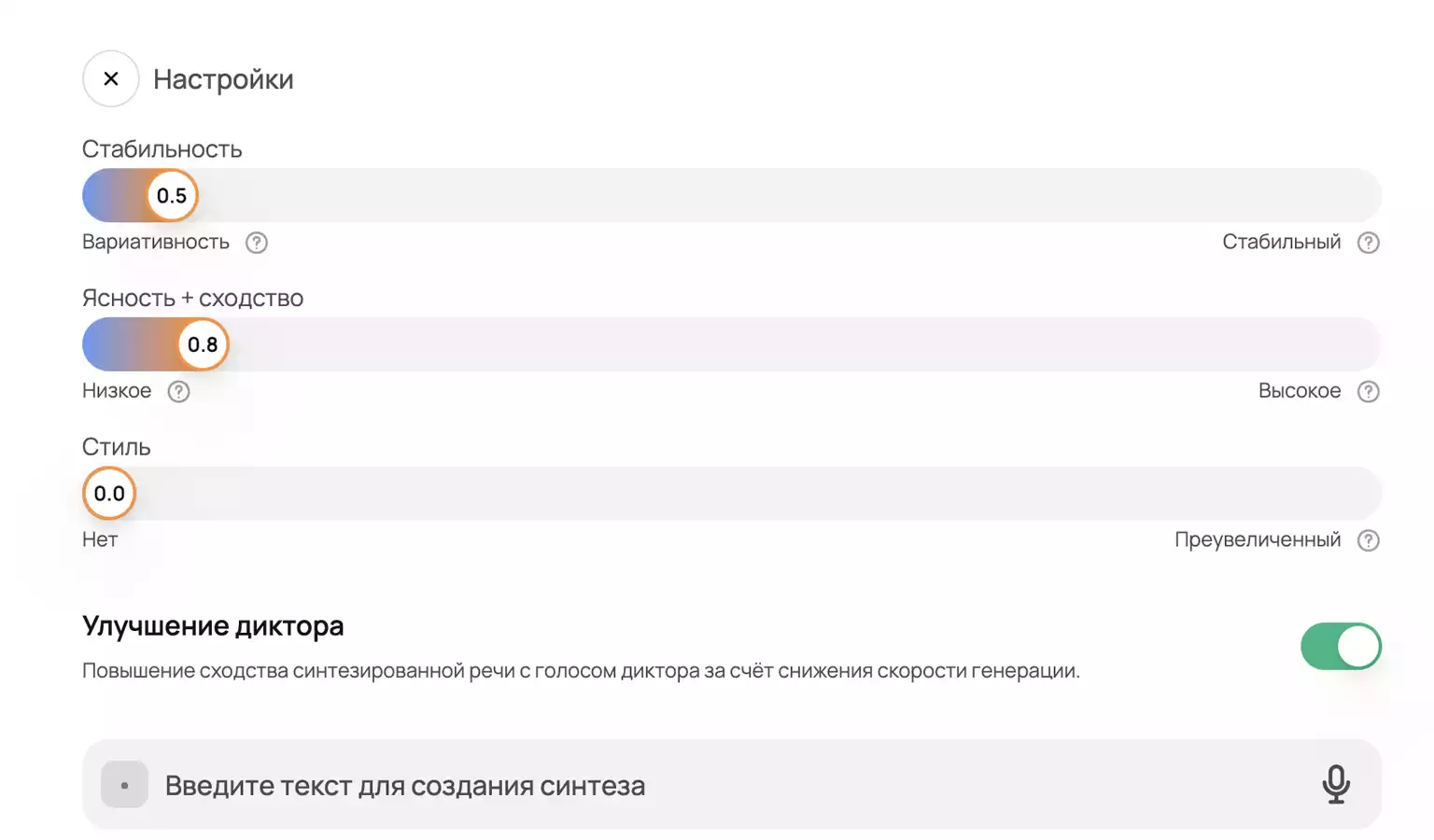
Once you have picked a voice, you can adjust several parameters to get the result you want:
-
Stability: This slider controls how much the speech varies. The higher the stability, the fewer changes there will be in intonation and pace, which can be useful for official announcements. Low stability adds more variation in intonation, which suits more creative tasks.
-
Clarity and similarity: Adjusts how closely the synthesised speech matches the original voice. The higher the value, the more precise the match to the original.
-
Style: The style setting lets you add expressive elements to the voice. For example, you can choose an exaggerated style for a more emotional delivery, or leave the style neutral.
-
Voiceover enhancement: This option improves the quality of the synthesised speech but may slow generation down slightly. It is especially useful for more complex projects that need high-quality voice work.
The process of creating narration
-
Enter the text you want voiced into the text field at the bottom of the screen.
-
Check all the settings to make sure they match your expectations.
-
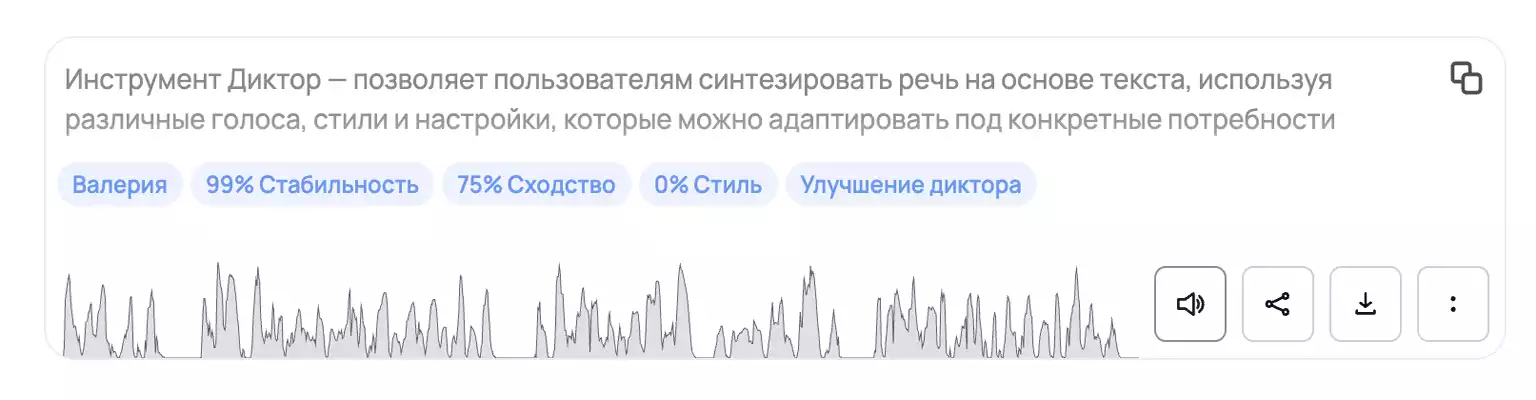
Send the text for processing. Once it is processed, the audio track will appear in the answer history, where you can download it.
Tips for improving the quality of synthesised speech
To make synthesised speech more natural and expressive, use the following techniques:
-
Controlling pauses: Use a comma «,» for a short pause between words. Two commas «,,» create a longer pause. An em dash «—» makes the model hold a significant pause.
-
Placing emphasis: Write a word in CAPITAL letters so the model pronounces it a little louder and with stress. Add an exclamation mark «WORD!» to strengthen the effect.
-
Changing intonation: A question mark «?» at the end of a sentence changes the intonation to questioning. Three question marks «???» create a more pronounced questioning intonation.
-
Setting stress: To control stress precisely when generating a voice in ElevenLabs, you can use accented characters, for example: "Lets go therÉ". The tool recognises such characters perfectly and places the stress where it belongs.
Tip. For the best result, read the text aloud yourself. Mark the places where you need a pause, a stressed word or a change of intonation, and apply the matching formatting techniques.
Conclusion
The "Voiceover" tool from GPTunneL is a powerful way to quickly create high-quality narration for any purpose. Using the flexible settings and the wide choice of voices, you can adapt the voiceover to your own unique projects, from audiobooks to ads and podcasts.
Sound Effect Generation
The TTSFX tool in GPTunneL lets users easily generate sound effects from a text description. This is useful for creating various audio elements for video, podcasts, audio projects and other media. With this tool you can adjust the length of the sounds, the generation style and other parameters, which makes it a flexible tool for creative projects.
Main features
Sound length
Sounds can be generated in a range from 1 to 22 seconds. That lets you create short effects, such as car noise or an explosion, as well as longer atmospheric tracks.
Text length
You can enter text of up to 200 characters to generate a sound effect. This makes it possible to create complex, detailed descriptions of sound effects.
Pricing
The cost of generating a sound is shown under the text field. The price depends on the length of the sound — billing is per second. For example, if the price is shown as $0.028 for 1 second, a 10-second sound will cost $0.28.
The "Prompt adherence" setting
This option determines how closely the generated sound effect will match the description you entered. 0.0: generation will be more creative and random. 1.0: generation will match the description you entered as precisely as possible. If you want a sound effect that matches your request exactly, use the value 1.0.
Storage of generated sounds
All the sound effects you create are stored on the platform for one week. After that the files may be deleted, so it is best to download them right after generation.
Support for other languages
You can enter text in your own language, and the system will automatically translate it into English to generate the sounds. That is convenient for anyone who prefers to work in their own language but wants to use the sound effect generation capabilities of an English-language model.
The process of creating a sound effect
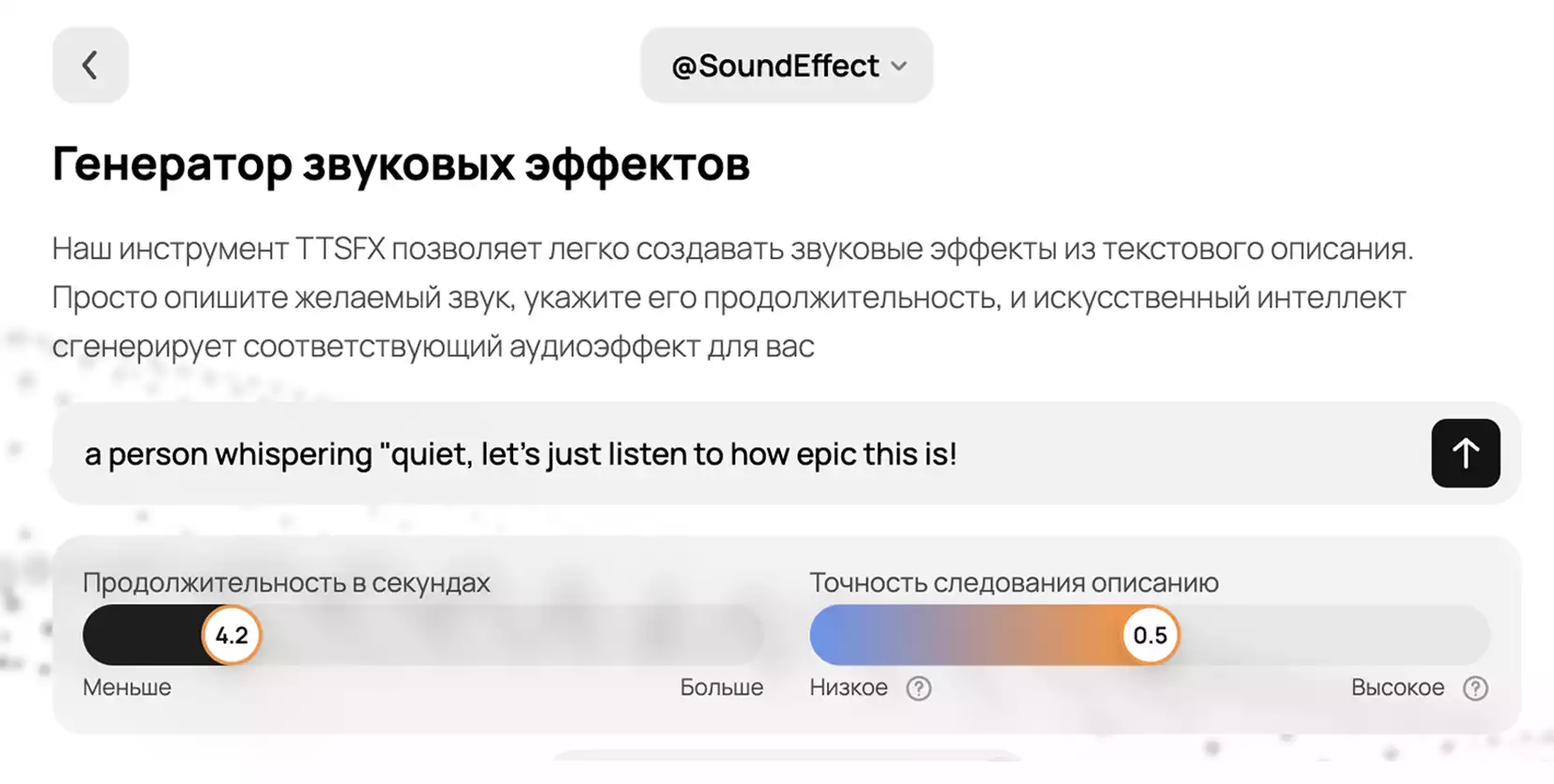
- Enter the text: Enter a description of the sound effect into the text field. For example: "the sound of a train" or "rustling grass"
- Set the parameters: Decide on the length of the sound, then adjust the "Prompt adherence" slider to control how precise the sound generation is.
- Start generation: Press the button to launch generation. The approximate cost will be shown before sound generation begins.
- Download the sound: Once generation is finished, the sound will be available to listen to and download. You can also regenerate the sound if needed.