
Midjourney is an innovative image generation service built on artificial intelligence. It lets users create unique visual works from text descriptions (prompts).
Where it is used
-
Concept art development for films and games
-
Unique illustrations for books and magazines
-
Visual content generation for marketing and advertising
-
Prototyping product and interior design
-
Digital art and experimental visual projects
The latest version, Midjouney 6.1, available in GPTunneL, is a major update to this AI-powered image generation service. This version brings a number of important improvements and new features.
Key improvements in midjourney 6.1 over previous versions
- Overall sharpness and detail of generated images have improved.
- Support for longer and more complex prompts.
- Better handling of negative prompts.
- New artistic styles and techniques added.
- Improved ability to blend different styles.
- Text rendering inside images is significantly better.
- More consistent results from identical prompts.
- More realistic and better-proportioned images of people.
Prompt structure for Midjouney
The prompt structure in MidJourney V6 differs from the one used in text generation models. Understanding the key elements of a prompt will help you generate images that match your expectations. This guide is aimed at beginners, but it contains detailed instructions so you can use MidJourney to its full power.
It is worth noting that this model works best with prompts in English, and all the recommendations here are in English too. That said, you can write your requests in your own language - the model will simply translate them into English automatically.
The main components of a MidJourney prompt:
Subject
Also known as the "core" of the prompt, this is the main object of your image. Describe the main subject as precisely and specifically as you can. The more precise the description, the better the AI can understand what exactly should be the centre of attention.
For example:
majestic dragon
Setting/Background
Describe the surroundings or the context the subject is in. This can be a location, a time of day or weather conditions. It sets the scene for your image.
For example:
perched on a mountain peak
Composition
State how the elements should be arranged in the image. You can set the perspective or the camera angle. This determines how the image will be structured.
For example:
wide-angle view
Lighting
Lighting shapes the mood of the image. State the type of lighting you want to see (for example, "dramatic lighting", "soft moonlight", "neon lighting"). This gives the image a particular mood.
For example:
dramatic sunset lighting
Details
Here you can specify colour schemes, textures or small elements. This adds depth and character to your image.
For example:
1. with iridescent scales
2. snow-capped
Style
MidJourney can render images in a range of artistic styles. For example, you can name well-known artists or movements. This helps set the overall artistic tone of the image.
For example:
in the style of epic fantasy art
Midjourney 6.1 is a significant step forward in image generation technology. With improved quality, expanded prompting capabilities and new stylistic options, this version opens up new horizons for creativity and innovation in visual art. Users are encouraged to experiment with the new features to unlock the full potential of this update.
The settings wizard and internal parameters
GPTunneL offers a settings wizard that helps you control the image generation process in MidJourney precisely. This tool lets you change a range of parameters to reach the result you want. Here are some of the key parameters:
-
Aspect ratio (ar): lets you set the ratio of image width to height. For example, "--ar 16:9" will produce a widescreen image.
-
Stylisation level (stylize): this parameter controls the degree of stylisation. The higher the value, the more stylised the image will be. The range is 0 to 1000, where 100 is the default.
-
Character reference (cref): lets you upload an image of a character so new scenes can be built from it while keeping facial features and style.
-
Image blending: the Blend feature lets you combine elements from two or more images to create unique visual results.
-
Seamless pattern (tile): generates images that can be used to build seamless patterns, for example for textures or backgrounds.
-
Negative words (no): lets you exclude unwanted elements from the image. For example, "--no people" will remove people from the image.
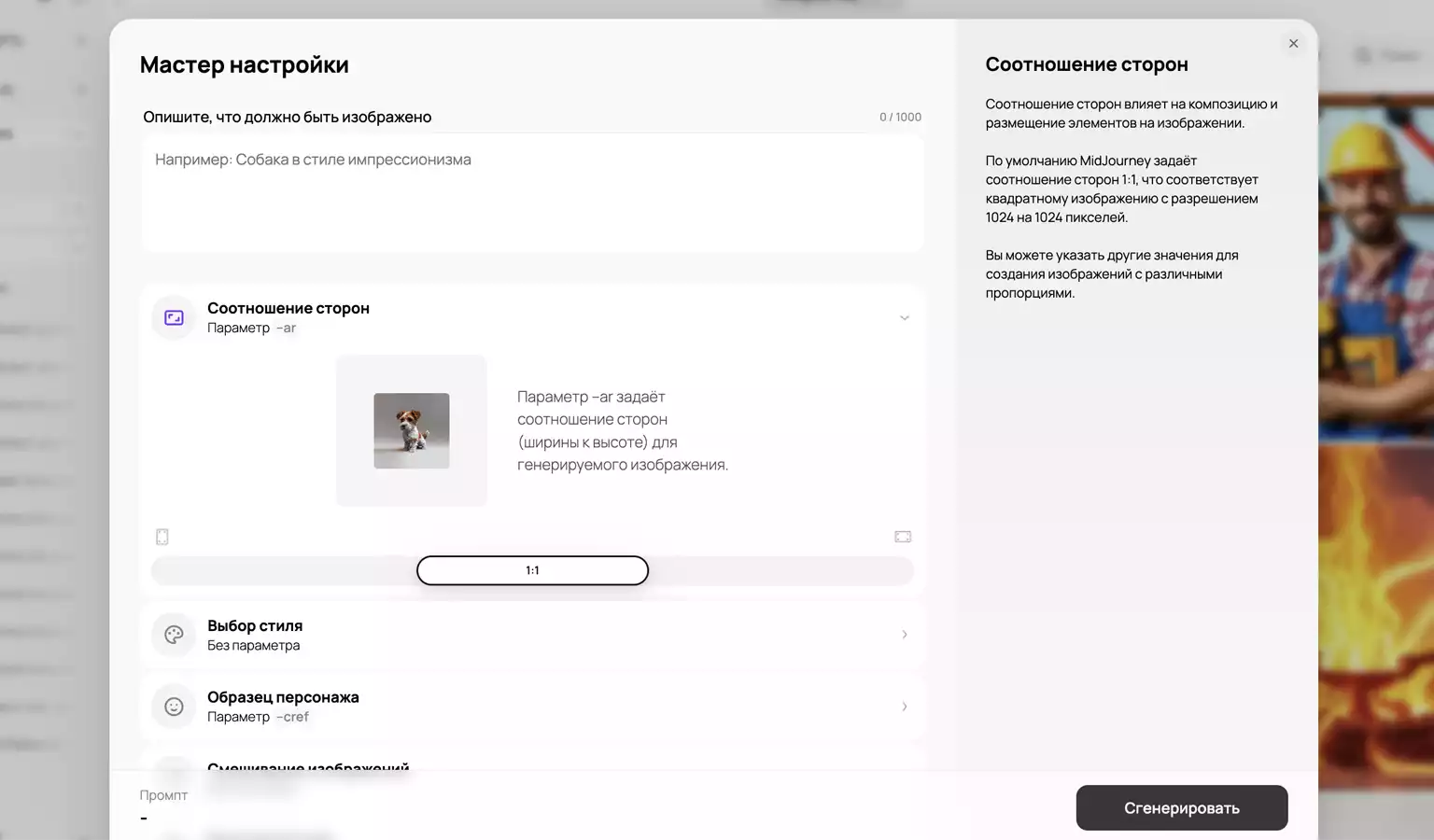
The settings wizard in GPTunneL
An example of a well-structured prompt that uses these parameters:
A majestic dragon with iridescent scales perched on a snow-capped mountain peak, wide-angle view, dramatic sunset lighting, in the style of epic fantasy art --ar 16:9 --stylize 500 --no people
Result:
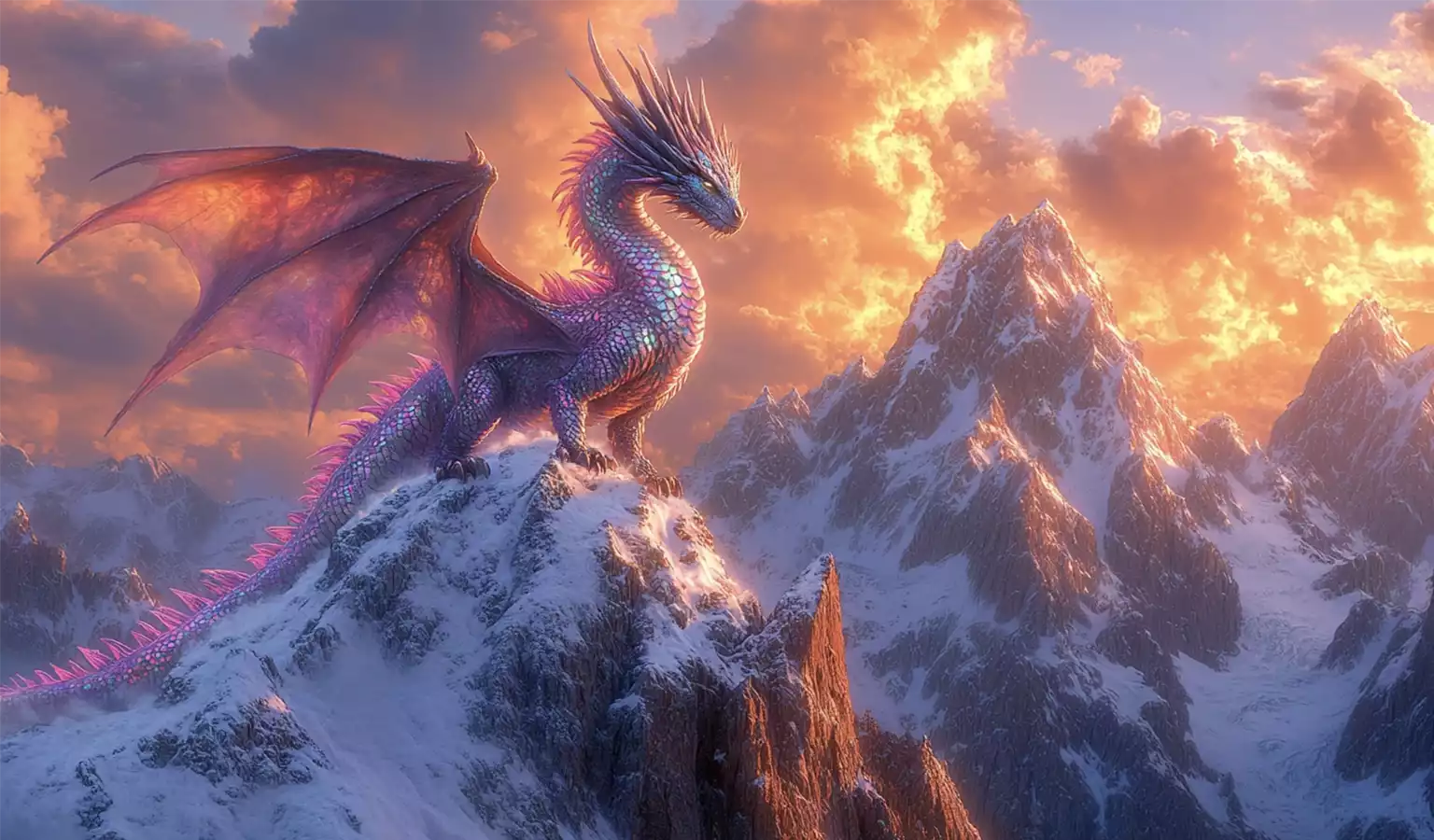
The generation result in Midjourey 6.1
From this prompt Midjouney created a widescreen image with a high level of stylisation while keeping people out of the scene.
Conclusion
Midjourney 6.1 is a significant step forward in image generation technology. With improved quality, expanded English-language prompting capabilities and new stylistic options, this version opens up new horizons for creativity and innovation in visual art.
We recommend experimenting with the new features and the settings wizard parameters to unlock the full potential of the model.