
This guide will help you master Playground V2.5 — an image generation model available in Creative Lab on the GPTunneL platform. We will go through its strengths, learn to write effective prompts and adjust parameters to get the best results.
What is Playground V2.5?
Playground V2.5 is a neural network that generates images from text descriptions (text-to-image). It belongs to the class of diffusion models and is the successor to the previous version, Playground V2. The model was built by Playground AI with a particular focus on achieving the highest possible aesthetic quality of images.
It is based on the Stable Diffusion XL (SDXL) architecture, but includes significant improvements aimed at increasing visual appeal, level of detail and prompt adherence.
What are the strengths of Playground V2.5?
Playground V2.5 stands out among other models thanks to several key advantages:
- Outstanding aesthetic quality: The model is trained to create visually appealing, harmonious and beautiful images, which is confirmed by user studies and Playground AI benchmarks, where it outperformed SDXL and DALL-E 3.
- Improved colors and contrast: The model generates images with bright, saturated colors and a wide dynamic range, which gives the pictures expressiveness and depth.
- Flexible aspect ratios: The model generates images well not only in the standard square format, but also in portrait or landscape orientation (for example, 9:16, 16:9, 3:2, 2:3 and so on).
- Prompt adherence: Using two text encoders (OpenCLIP-ViT/G and CLIP-ViT/L), the model effectively picks up nuances in text descriptions, letting you control composition, style and content more precisely.
- Generation speed: The model is optimized for fast work, which matters for an iterative creative process.
Who is Playground V2.5 for?
Thanks to its focus on aesthetics and detail, Playground V2.5 will be an excellent tool for a wide range of GPTunneL users:
- Graphic designers and illustrators: For creating concept art, illustrations and unique visual elements.
- Marketers and social media specialists: For generating engaging content for social networks, advertising and blogs.
- Artists and photographers: For finding inspiration, creating references and experimenting with styles.
- Content creators and bloggers: For illustrating articles, videos and presentations.
- Entrepreneurs: For quickly creating product visuals and design prototypes.
- Students and AI newcomers: For exploring the capabilities of generative models and creating their first works.
- Visual content enthusiasts: For everyone who loves creating beautiful and unusual images.
How to start working with Playground V2.5 on GPTunneL?
Getting started with Playground V2.5 image generation in GPTunneL is very simple:
- Sign up and log in: If you do not have an account yet, sign up at GPTunneL. Log in to your account.
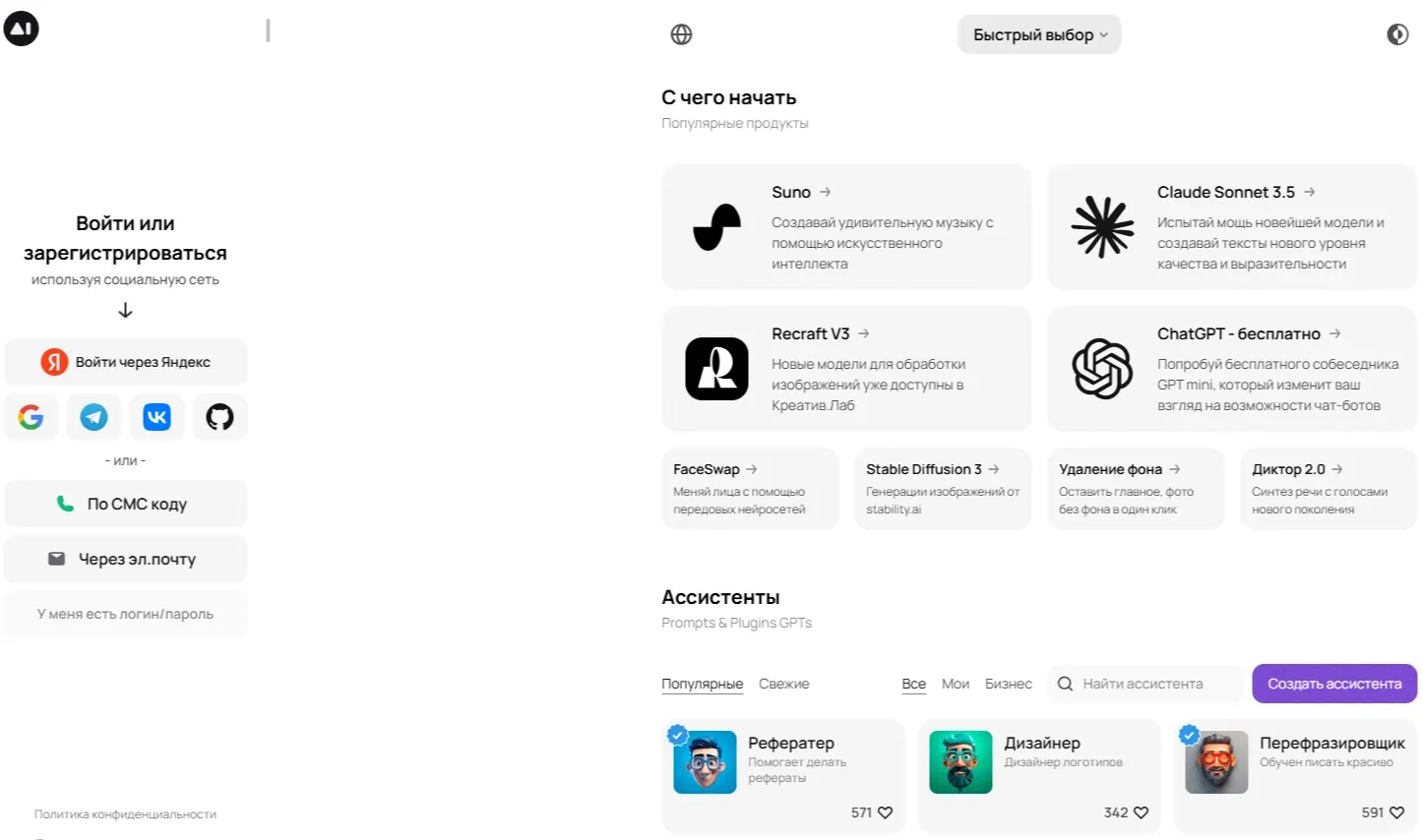
- Go to Creative Lab: In the main menu, find the Creative Lab section. It brings together all the tools for generating images and videos.
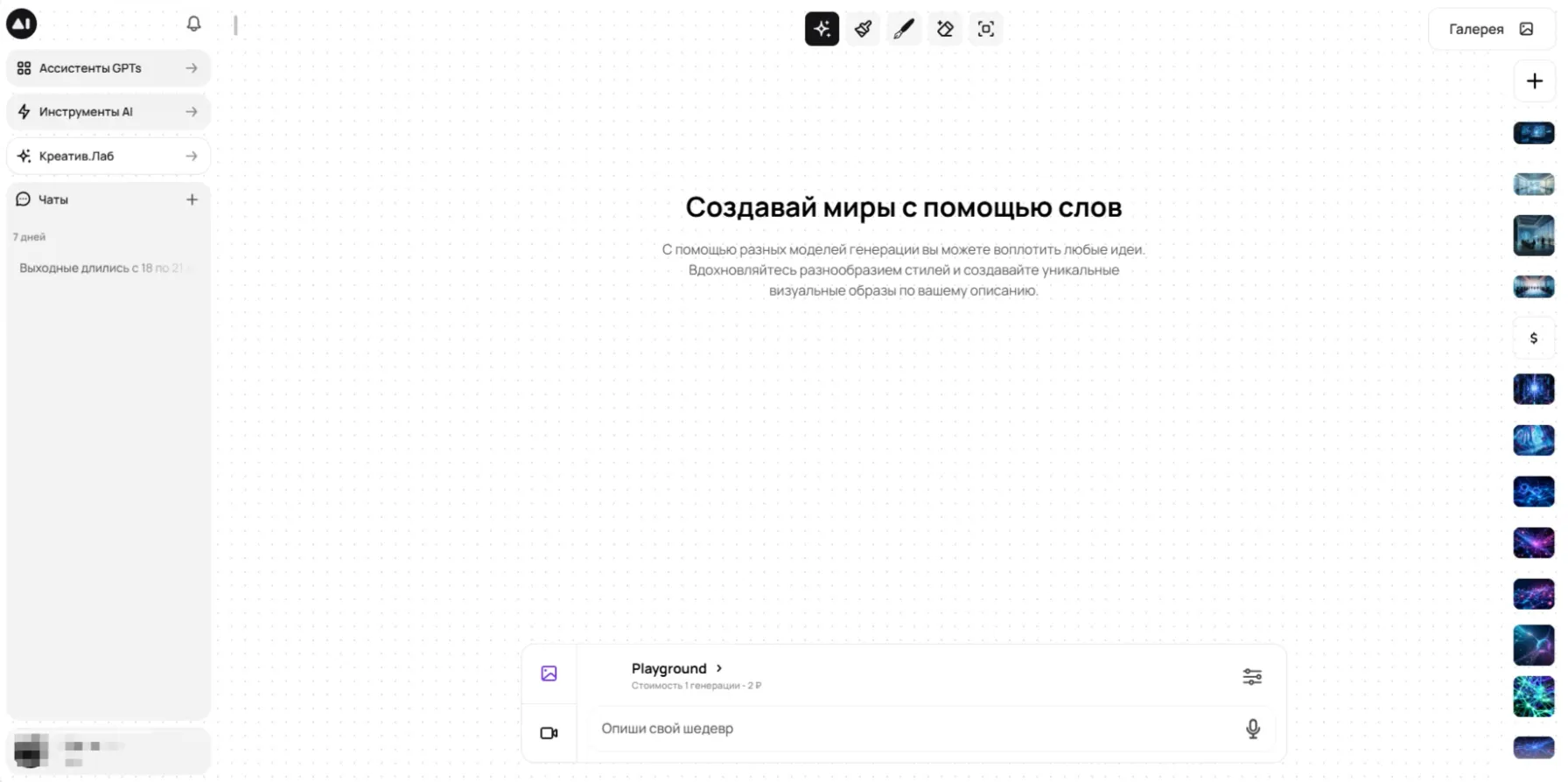
- Choose the model: In the list of available models, find and select Playground V2.5.
- Write the prompt: In the text field, enter the description of the image you want to create. The more detailed and precise your prompt, the better the result.
- Adjust the parameters: Click the settings icon (Settings Wizard) to set additional parameters: style, aspect ratio and negative prompts
- Run the generation: Click the "Start generation" button and wait a few seconds.
- Editing (optional): If the result needs refinement, you can use the Eraser or Brush tools to correct details.
- Saving and history: All the images you generate are automatically saved in the "Gallery" section, where you can view them, download them or use them for further generations.
How to write prompts for Playground V2.5?
The quality of the result depends directly on your prompt. Here are a few tips:
- Language: The model understands English best, since it was trained mostly on English-language data. If you write in another language, GPTunneL will translate your request automatically, but for maximum control we recommend writing in English or using a prompt generator (for example, asking Claude 3.7 Sonnet or GPT-4o to translate and expand your prompt).
- Prompt structure: Try to describe the image consistently, using keywords and phrases separated by commas. A good structure might look like this:
[Main subject/Scene], [Important details of the subject/Actions], [Environment/Background], [Style/Artist/Mood], [Technical details: lighting, color, camera angle, quality]
- Be descriptive, not instructive: Instead of "Draw in the style of Van Gogh", write "style of Van Gogh". Describe what you want to see, not how the model should do it.
- Specifics matter: Instead of "a beautiful landscape", be precise: "breathtaking sunset over a calm tropical beach with silhouetted palm trees, vibrant orange and purple sky, realistic photo".
- Experiment: Try different wordings, add or remove words, change their order.
- Check generation pricing on our prices page.
Example of a basic prompt:
A majestic white wolf standing on a snowy mountain peak, howling at the full moon, intricate fur details, mystical glowing blue eyes, aurora borealis in the night sky, fantasy art style, cinematic lighting, hyperdetailed, sharp focus.
Settings: styles, aspect ratios, negative prompts
In the GPTunneL Settings Wizard you can fine-tune the generation:
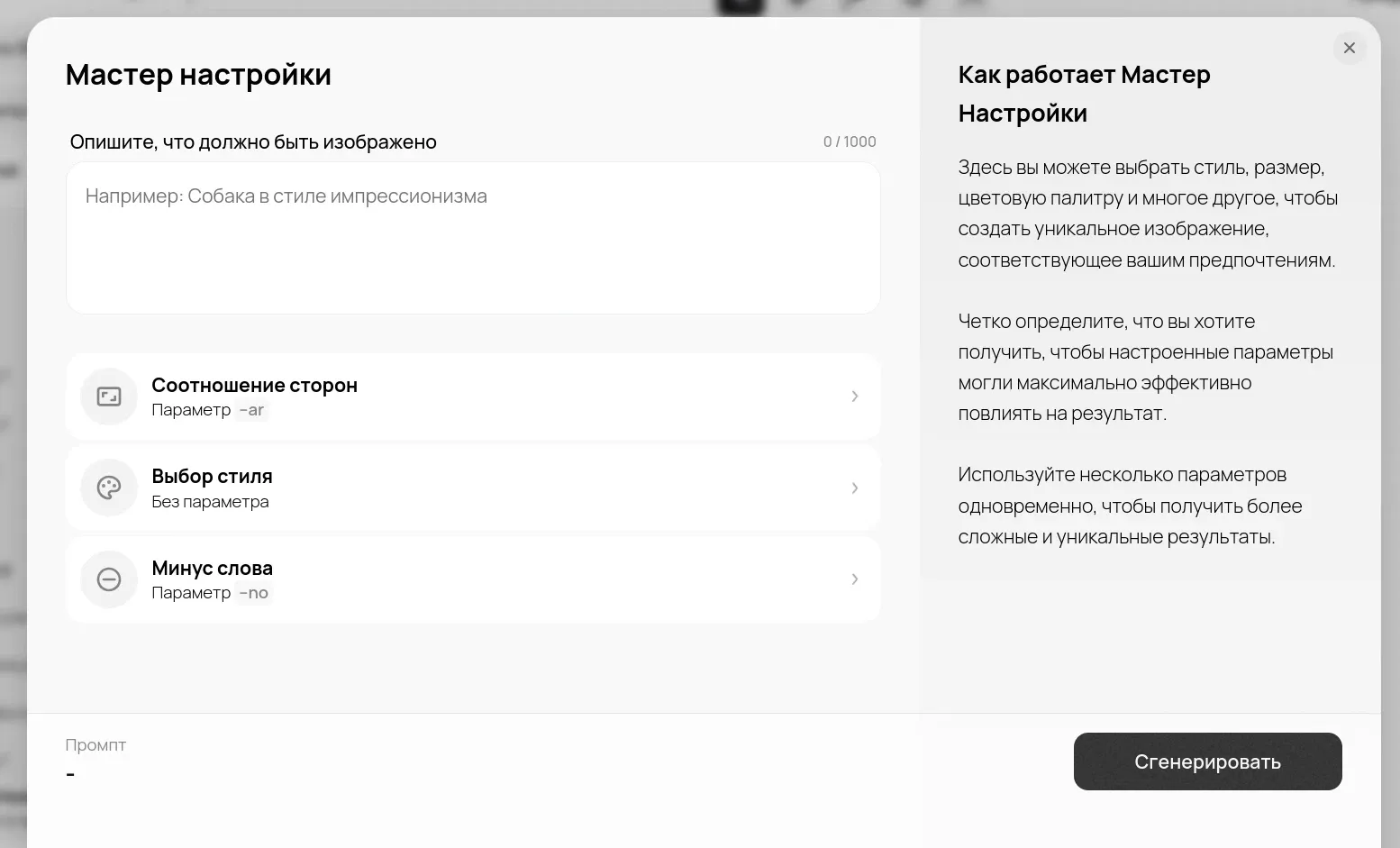
- Styles: Choosing a style helps the model immediately understand the overall aesthetic of the image (for example, Cinematic, Anime, Photorealistic, Fantasy Art, Minimalist). This sets the tone for the whole generation.
- Aspect Ratio: Determines the proportions of the image. Playground V2.5 works well with different formats, from a square (1:1) to wide panoramas (21:9) or vertical formats for social media (9:16).
- Negative Prompts: A very important tool! Here you list everything that should not appear in the picture. This helps fight artifacts and unwanted elements.
It is worth noting separately that negative prompts can be roughly divided into two types: general and contextual. Here are some examples:
- General negative prompts: ugly, deformed, blurry, low quality, bad anatomy, extra limbs, extra fingers, poorly drawn hands, disfigured, text, words, signature, watermark, username.
- Contextual negative prompts: If you are generating nature, you can add buildings, people, cars. If you need a portrait without glasses, add glasses.
Generation examples and prompt breakdowns
Here are a few examples of images created with Playground V2.5, with a breakdown of the prompts:
1. Product photo of a hand lotion

Prompt: Hand lotion, housed in a bamboo container, peach and soft lilac, minimalistic geometric design, focused lighting on the packaging, vibrant pop-art aesthetic, eco-friendly ambiance, delicate pastel hues, commercial photography approach, professional-grade DSLR shot --ar 9:16
Breakdown: This prompt effectively combines two concepts: a minimalist geometric design and a vibrant pop-art aesthetic. Clear indications of the color palette (peach, soft lilac, pastel hues), focused lighting and the imitation of professional photography (commercial photography, DSLR shot) let Playground V2.5 reproduce the intended atmosphere accurately.
It is worth noting that the model did not handle the required packaging material — instead of bamboo it showed plastic.
2. Mechanical hummingbird in a garden of clocks
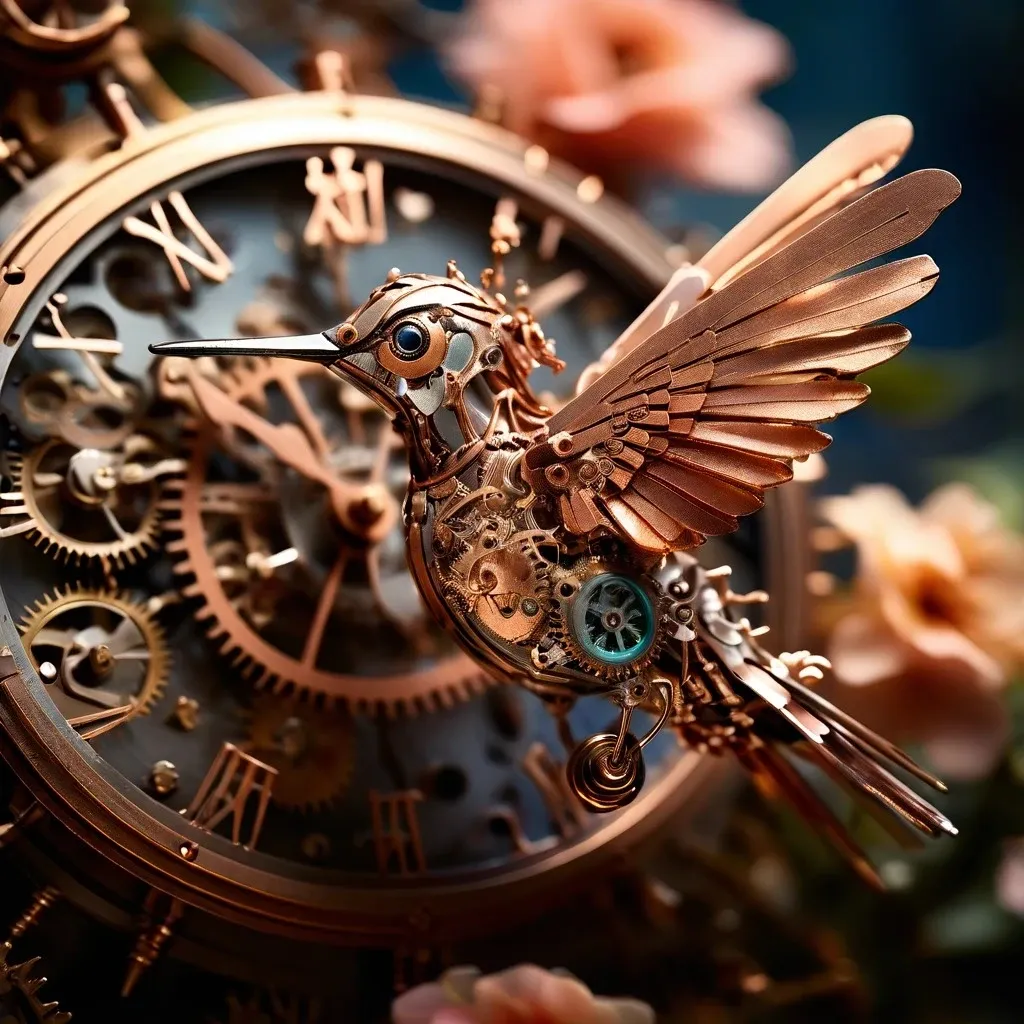
Prompt: Tiny intricate mechanical hummingbird made of polished copper and brass gears, hovering over a blooming flower clock face, soft bokeh background of a surreal garden filled with various clocks and timepieces, detailed metallic texture, steampunk aesthetic, warm natural light, macro photography. --ar 1:1
Breakdown: The prompt creates a contrasting scene, combining nature (a hummingbird, a flower) with mechanics (copper, gears, clocks) in a steampunk aesthetic. The keywords tiny intricate, detailed metallic texture, polished copper and brass steer the model toward generating a high level of detail, which is a strength of Playground V2.5.
3. Photorealistic portrait
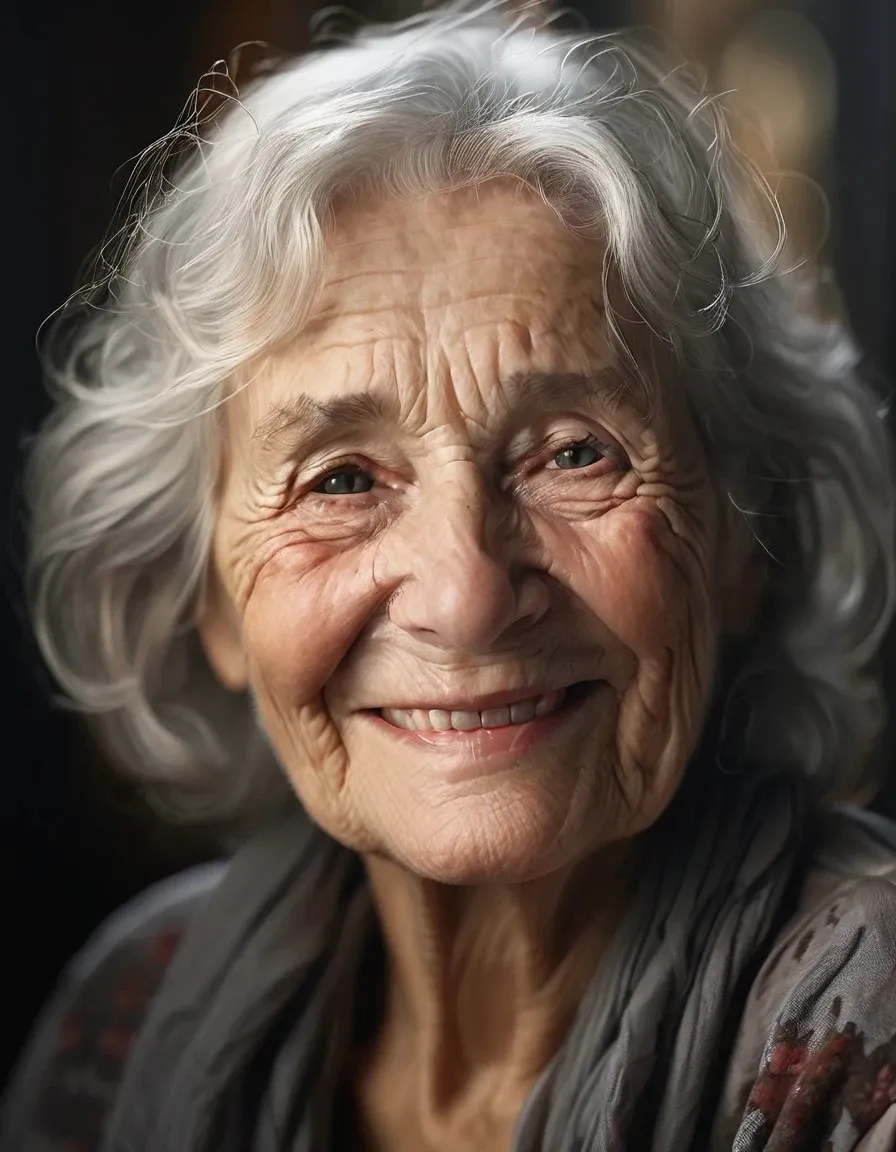
Prompt: Photorealistic close-up portrait of an elderly woman with kind smiling eyes and detailed wrinkles, soft natural window light illuminating her face, shallow depth of field, high detail skin texture, grey hair, peaceful expression. --ar 3:4
Breakdown: The prompt focuses on photorealism (Photorealistic, high detail skin texture) and portrait details (age, facial expression, type of lighting). Specifying shallow depth of field helps create an artistic effect with a blurred background. The 3:4 aspect ratio is typical for portraits. Playground V2.5 shows its strength in conveying human facial expressions and textures.
4. Dynamic concept art

Prompt: Dynamic concept art of a futuristic racer on a hovering motorcycle speeding through a canyon track, motion blur effect, sparks flying from the chassis, low angle shot, high speed, sci-fi vehicle design, vibrant energy trails, cinematic action scene.
Breakdown: The prompt conveys motion (Dynamic, speeding, motion blur, high speed, action scene) and a futuristic setting (futuristic racer, hovering motorcycle, canyon track, sci-fi vehicle design, energy trails). Specifying low angle shot sets the camera angle. Playground V2.5 handles energetic scenes and conceptual designs well.
Tips for improving results
- Iterations are your friend: You rarely get the perfect image on the first try. Try changing the prompt slightly, adding or removing details, switching the style.
- Be specific about details: Instead of "a car", write "a vintage red sports car from the 1960s". The more specifics, the better.
- Play with styles: Add the names of artists (in the style of Greg Rutkowski), photographers (photo by Annie Leibovitz) or art movements (impressionist painting).
- Do not neglect negative prompts: This is a powerful tool for cleaning junk and artifacts out of an image. You should not add too many of them. Image generators are built to be creative, and it is important to keep a balance between creativity and control.
- Use examples: Found a good composition in the Gallery but want to change how the subject is positioned? Save it, edit the prompt (or ask ChatGPT to analyze the image and write a prompt with your requirements) and generate again.
- Combine tools: GPTunneL offers the Brush (changing existing images with prompts), Eraser (removing unwanted details) and Panorama (extending the canvas) features — use them to refine generated images.
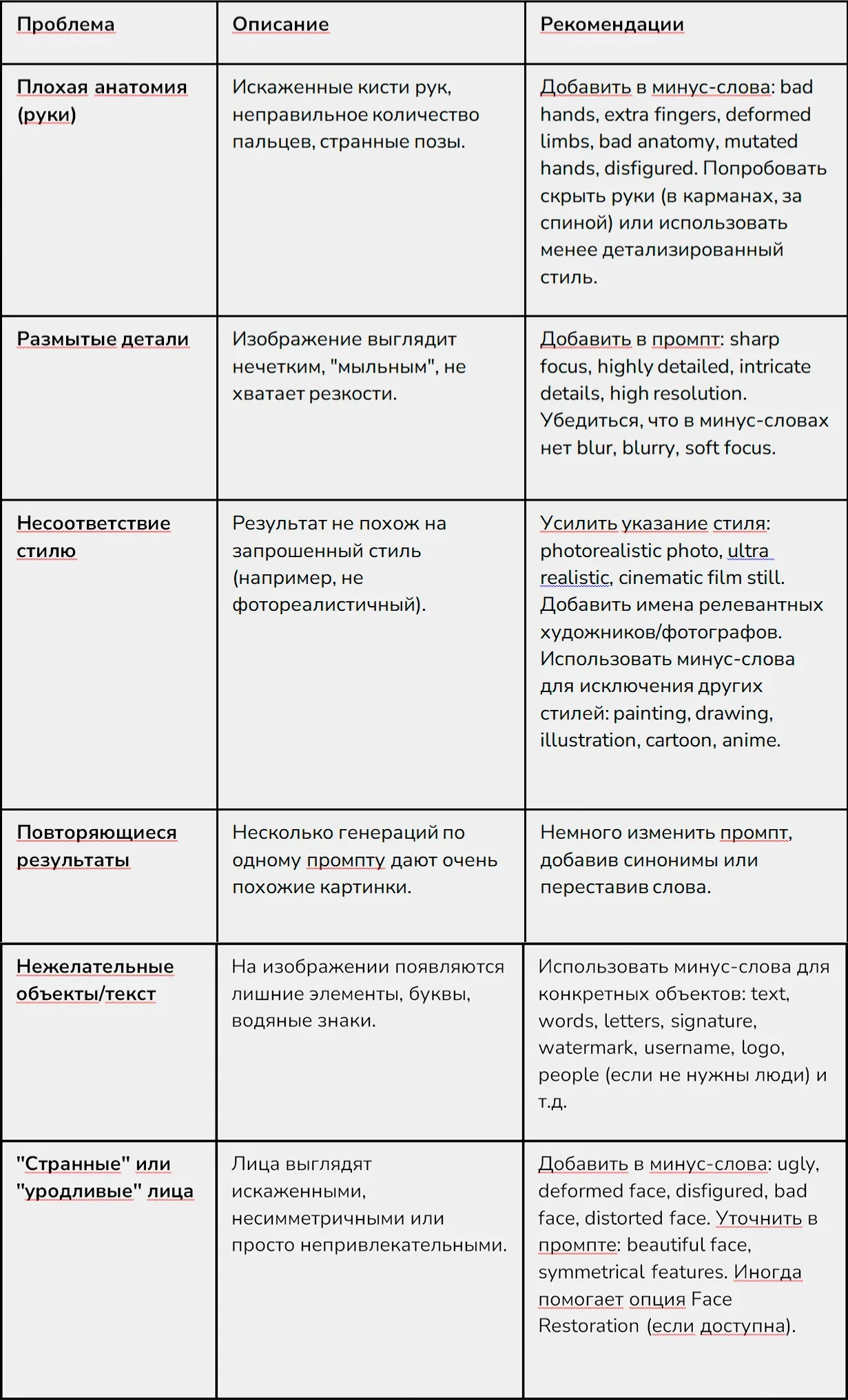
Solving common problems
Conclusion
Playground V2.5 is an effective tool for creating aesthetically appealing images, available in GPTunneL Creative Lab. Its features — saturated colors, high level of detail and good prompt understanding — make it a useful tool for designers, artists, marketers and other users working with visual content.
Playground V2.5 shows its strengths in tasks where the overall aesthetic of the image matters. While some models may handle narrowly specialized tasks better (for example, generating text inside an image, like FLUX Ultra, or hyper-realistic faces, like Dall-E 3), Playground V2.5 offers a good combination of quality, visual appeal and flexibility.
We invite you to explore what Playground V2.5 can do on GPTunneL, experimenting with prompts, settings and styles to solve your creative and work tasks.